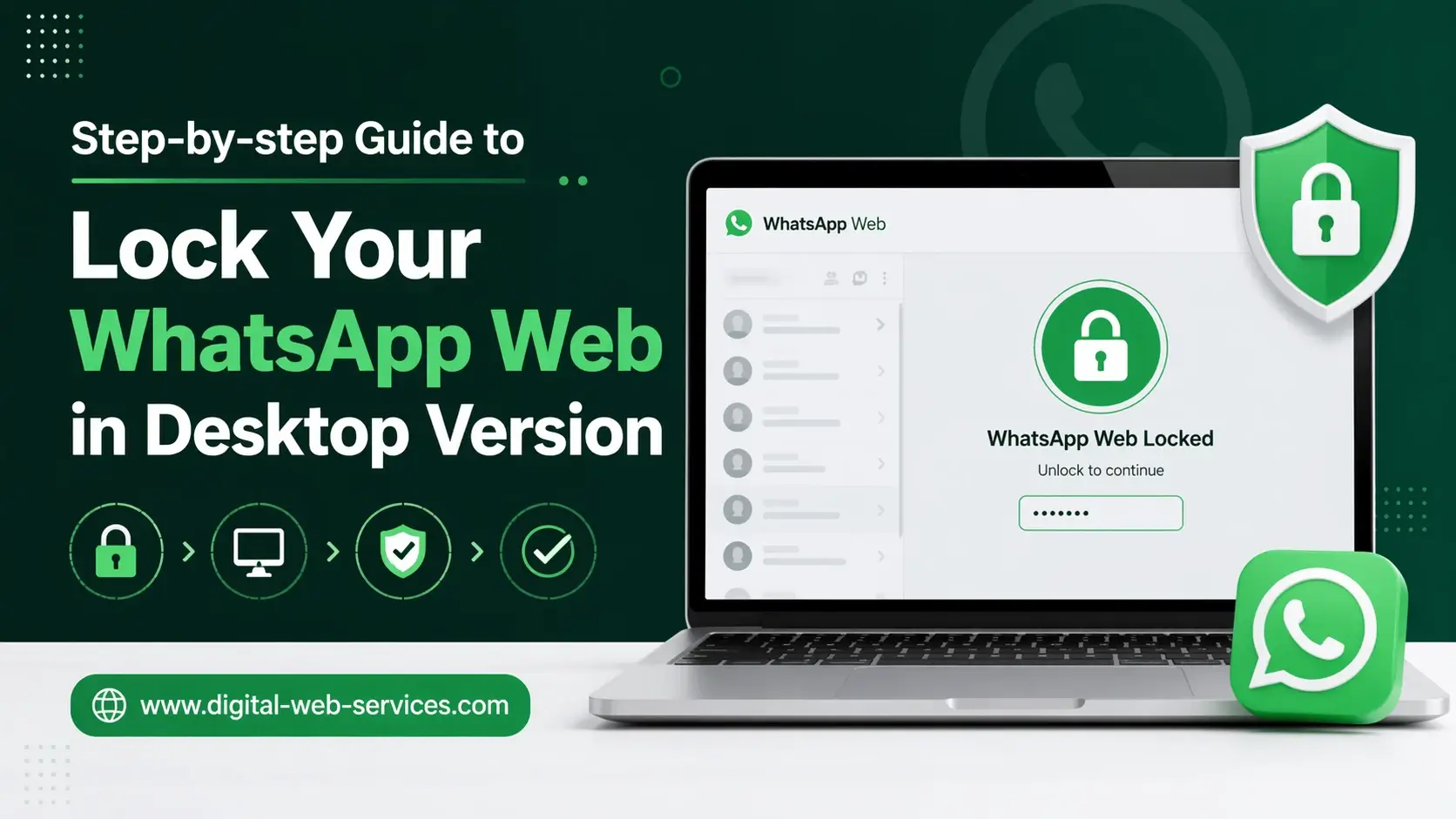
If you want to lock your WhatsApp Web on desktop, you can use its built-in screen lock feature. This feature allows you to protect your chats with a password, ensuring no one can access your messages when you are away from your computer. To enable it, open WhatsApp Web, go to Settings, select Privacy, and turn on Screen Lock. You’ll need to create a password and choose an auto-lock time. Once activated, your chats will automatically lock after inactivity, keeping your personal and professional conversations secure. This is one of the best ways to improve WhatsApp Web security without installing any third-party tools.
How to lock WhatsApp Web step by step?
Follow these simple steps to enable WhatsApp Web lock on your desktop:
1. How do you open WhatsApp Web?
- Go to the official website: web.whatsapp.com
- Scan the QR code using your phone to log in
2. Where are settings in WhatsApp Web?
- Click on the three-dot menu (top-left corner)
- Select Settings
3. How to access privacy settings?
- Inside Settings, click on Privacy
4. How to enable screen lock in WhatsApp Web?
- Scroll down and find Screen Lock
- Click on it to enable
5. How to set password for WhatsApp Web?
- Enter a password (6–128 characters)
- Confirm the password and save it
6. How to set auto-lock timer?
- Choose inactivity duration:
- 1 minute
- 15 minutes
- 1 hour
How does WhatsApp Web screen lock work?
The WhatsApp Web screen lock feature works like a security layer:
- Automatically locks chats after inactivity
- Requires password to reopen chats
- Prevents unauthorized access on shared computers
- Disables message preview when locked
This makes it ideal for office users, freelancers, and students who use shared desktops.
Can you manually lock WhatsApp Web anytime?
Yes, you can manually lock your screen anytime:
- Click on the three-dot menu
- Select Lock Screen
This is useful when stepping away from your desk without waiting for auto-lock.
What happens if you forget WhatsApp Web lock password?
If you forget your password:
- You cannot recover it directly
- You must log out of WhatsApp Web
- Re-login by scanning QR code again
- Set a new screen lock password
Does WhatsApp Web lock stay after logout?
No, the screen lock is session-based:
- If you log out, the lock is removed
- You must enable it again after logging in
What are the best tips to secure WhatsApp Web on desktop?
1. Use a strong password
Avoid simple passwords like 123456
2. Enable auto-lock
Set a short inactivity timer for better security
3. Always log out on shared PCs
Especially in cyber cafés or office systems
4. Avoid saving login on public browsers
Prevents unauthorized access
Real workflow example (Information Gain)
Imagine you’re working in an office:
- You open WhatsApp Web for client communication
- You step away for a meeting
- Without screen lock → anyone can read messages
- With screen lock enabled → chats stay protected
This simple feature can prevent data leaks, privacy breaches, and misuse of sensitive conversations.
Why should you lock WhatsApp Web?
Locking WhatsApp Web is important because:
- Protects personal chats and business data
- Prevents unauthorized access
- Enhances privacy on shared devices
- Works without installing extra software
It’s a built-in WhatsApp Web security feature that every user should enable.
| Also Read: How to See Which Devices Are Logged Into WhatsApp | WhatsApp Linked Devices Guide
FAQs
Q: How do I lock WhatsApp Web on my computer?
Go to WhatsApp Web → Settings → Privacy → Enable Screen Lock → Set password → Choose auto-lock time.
Q: Can I lock WhatsApp Web without logging out?
Yes, you can use the screen lock feature to lock it without logging out.
Q: Is WhatsApp Web screen lock safe?
Yes, it is a secure feature provided by WhatsApp to protect chats with a password.
Q: Why is my WhatsApp Web not showing screen lock option?
Make sure you are using the latest version of your browser and WhatsApp Web.
Q: Can I use fingerprint lock on WhatsApp Web?
No, fingerprint lock is only available on mobile apps, not on desktop.
Final Thoughts
Enabling WhatsApp Web lock is one of the easiest ways to improve your digital privacy. With just a few clicks, you can add a password layer to your chats and prevent unauthorized access. Whether you’re using it for personal or professional communication, this feature ensures your data stays safe on desktop devices.

Maria Jain is a Senior Content Strategist and Tech Editor at Digital Web Services, with over 6+ years of experience covering digital marketing, website development, and search engine optimization. She specializes in WordPress site architecture, AI technologies, Web Hosting, topical authority models, and hands-on SaaS & affiliate tool reviews. Maria combines data-driven SEO practices with deep web design and technical insights to publish transparent guides, tool comparisons, and strategic tutorials for digital growth.