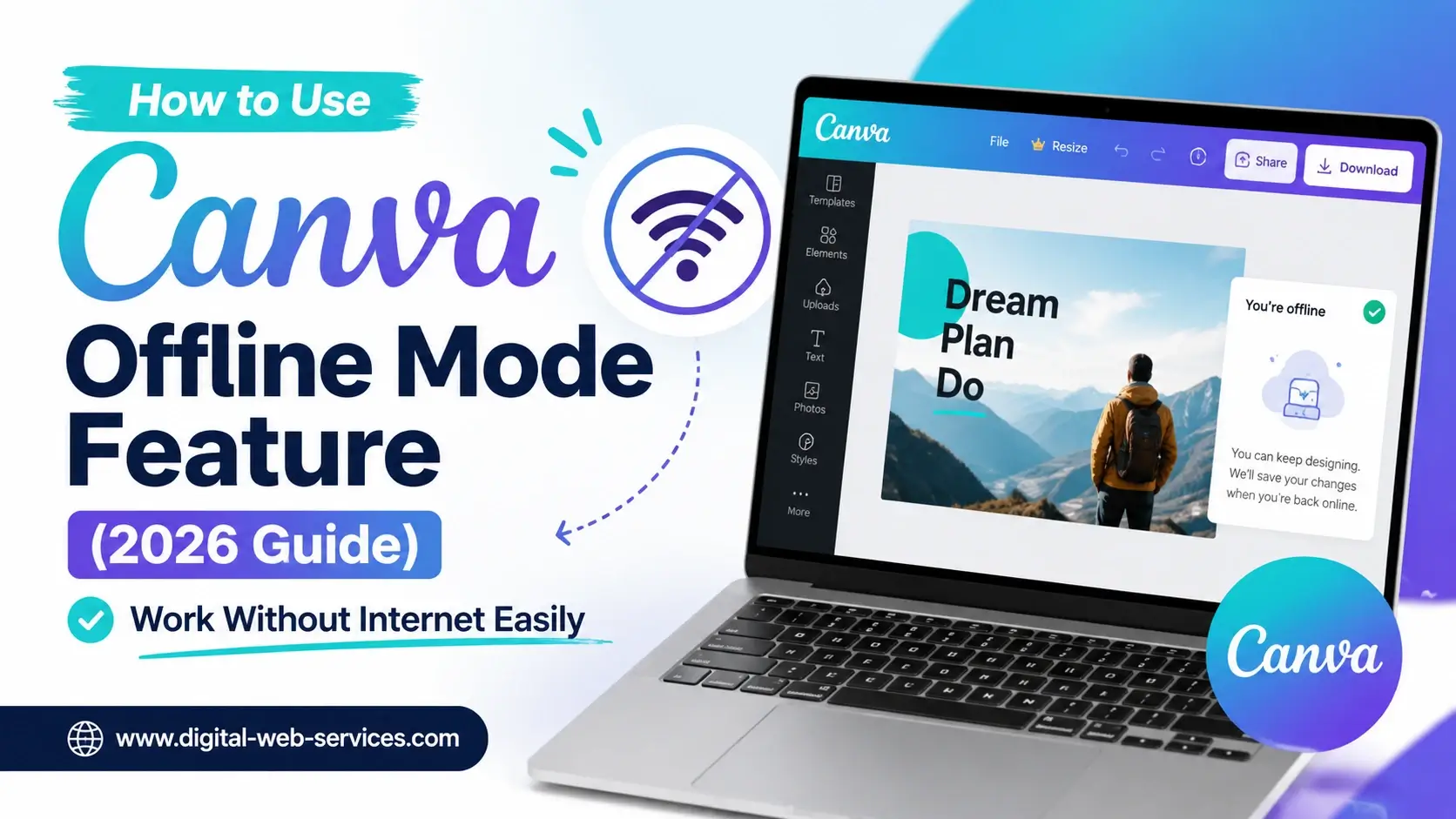
Quick Insights:
- Canva Offline Mode lets you create and edit designs without internet for up to 14 days
- You must enable “Make available offline” before going offline
- All changes automatically sync once you reconnect to the internet
What is Canva Offline Mode?
Canva Offline Mode is a new feature that allows users to continue designing even when there is no active internet connection. It is built for mobile-first users who work while traveling, commuting, or living in areas with unstable connectivity.
With this update, Canva moves closer to becoming a fully flexible design tool for global users.
Key Idea:
You don’t need constant internet access anymore to keep working on your designs.
Why Canva Introduced Offline Mode
The demand for offline editing was one of the most requested features globally.
Canva designed this feature for:
- Students working on assignments during travel
- Designers working in low-network areas
- Entrepreneurs creating social media posts on the move
- Teachers preparing classroom materials without stable Wi-Fi
This reflects a shift in how digital tools are evolving:
👉 Always accessible, even without connectivity
How Canva Offline Mode Works (Step-by-Step Guide)
Here is the exact workflow to use Canva offline mode effectively:
Step 1: Open Your Design
Log in to Canva and open the design you want to work on.
Step 2: Enable Offline Access
Click on the option:
“Make available offline”
This prepares your file for offline editing.
Step 3: Disconnect Internet Safely
Once enabled, you can safely go offline.
Step 4: Continue Editing
You can:
- Edit text
- Adjust layouts
- Move elements
- Apply design changes
Everything works normally within supported features.
Step 5: Automatic Sync
Once you reconnect to the internet, Canva automatically:
- Uploads changes
- Syncs your updated design
- Saves final version in cloud
Important Feature Limit (14-Day Offline Window)
One of the key technical points is that Canva offline editing is available for up to 14 days without internet access.
After this period:
- You may need to reconnect to sync or refresh access
- Offline edits may stop if not synced
This ensures data consistency across devices.
Supported Devices and Accessibility
Canva Offline Mode works across multiple devices:
- Desktop (browser-supported offline caching)
- Mobile app (Android & iOS optimized)
- Tablet devices
It is included at no extra cost for all users, making it highly accessible.
Real-World Use Cases (Information Gain Section)
Here’s how users actually benefit from Canva offline mode:
1. Travel Content Creation
A social media manager traveling by train can still design Instagram posts without interruption.
2. Classroom Teaching
Teachers can prepare presentations during school commute or in low-network zones.
3. Startup Founders
Entrepreneurs can quickly edit pitch decks before meetings—even without Wi-Fi.
4. Freelancers
Freelancers working in cafes or remote areas can maintain productivity.
👉 This feature is especially powerful in mobile-first markets like India, where connectivity can vary significantly.
Expert Insight
From a usability standpoint, Canva Offline Mode solves a key UX problem: dependency on continuous internet access in creative workflows.
It also improves:
- Productivity consistency
- Workflow reliability
- Cross-device design continuity
This aligns with modern SaaS trends where tools are becoming resilient-first applications, not just cloud-dependent platforms.
Recent Canva Ecosystem Updates
Along with offline mode, Canva has been expanding its AI and integration capabilities:
- Integration with AI design tools via connected apps
- Support for AI-generated visuals and editing enhancements
- Improved collaboration features for teams
These updates strengthen Canva’s position as a full-stack design ecosystem rather than just a design tool.
Benefits of Canva Offline Mode
- Work without internet connection
- Save time during travel or outages
- Auto-sync when online
- Improve productivity
- No additional cost
Limitations You Should Know
- Requires pre-enabled offline mode
- Sync depends on internet restoration
- Some advanced features may need connectivity
- 14-day offline window limitation
FAQs on How to Use Canva offline
1. How do I use Canva offline mode?
To use Canva offline mode, open your design and select “Make available offline”. After enabling it, you can edit without internet, and changes will sync when you reconnect.
2. Can Canva work without internet?
Yes, Canva allows offline editing for up to 14 days once the offline mode is enabled.
3. Is Canva offline mode free?
Yes, Canva offline mode is available to all users at no additional cost.
4. What happens if I edit Canva offline?
All your edits are saved locally and automatically synced once internet access is restored.
5. Which devices support Canva offline mode?
It works on desktop, Android, iOS, and tablet devices with supported offline caching.

Maria Jain is a Senior Content Strategist and Tech Editor at Digital Web Services, with over 6+ years of experience covering digital marketing, website development, and search engine optimization. She specializes in WordPress site architecture, AI technologies, Web Hosting, topical authority models, and hands-on SaaS & affiliate tool reviews. Maria combines data-driven SEO practices with deep web design and technical insights to publish transparent guides, tool comparisons, and strategic tutorials for digital growth.