Every time someone sends a photo or video on WhatsApp, it silently sneaks into your phone’s gallery. Before you know it, your storage is full, and your gallery is flooded with random memes, forwarded images, and unwanted media.
The good news? You don’t have to deal with the daily cleanup. Here is a quick step-by-step guide to stop WhatsApp from automatically saving media to your gallery and keep your phone organized.
Why Should You Turn Off WhatsApp Auto-Downloads?
Before jumping into the steps, here is why turning off this feature is a game-changer for your phone:
- Clutter-Free Gallery: No more scrolling through hundreds of useless memes and forwarded images just to find your personal photos.
- Reclaim Phone Storage: Auto-downloaded media silently eats up gigabytes of space. Stopping it instantly frees up room for important apps and files.
- Total Control Over Media: You get to decide which photos deserve a spot in your gallery and which ones should stay inside the chat.
How to Stop WhatsApp Auto-Saving Media (Step-by-Step)
Step 1: Open WhatsApp Settings
Open WhatsApp on your device. Tap the three dots in the top-right corner (Android) or hit Settings at the bottom-right (iPhone).
Step 2: Navigate to Chats
Inside the main menu, select Chats to access your media and display preferences.
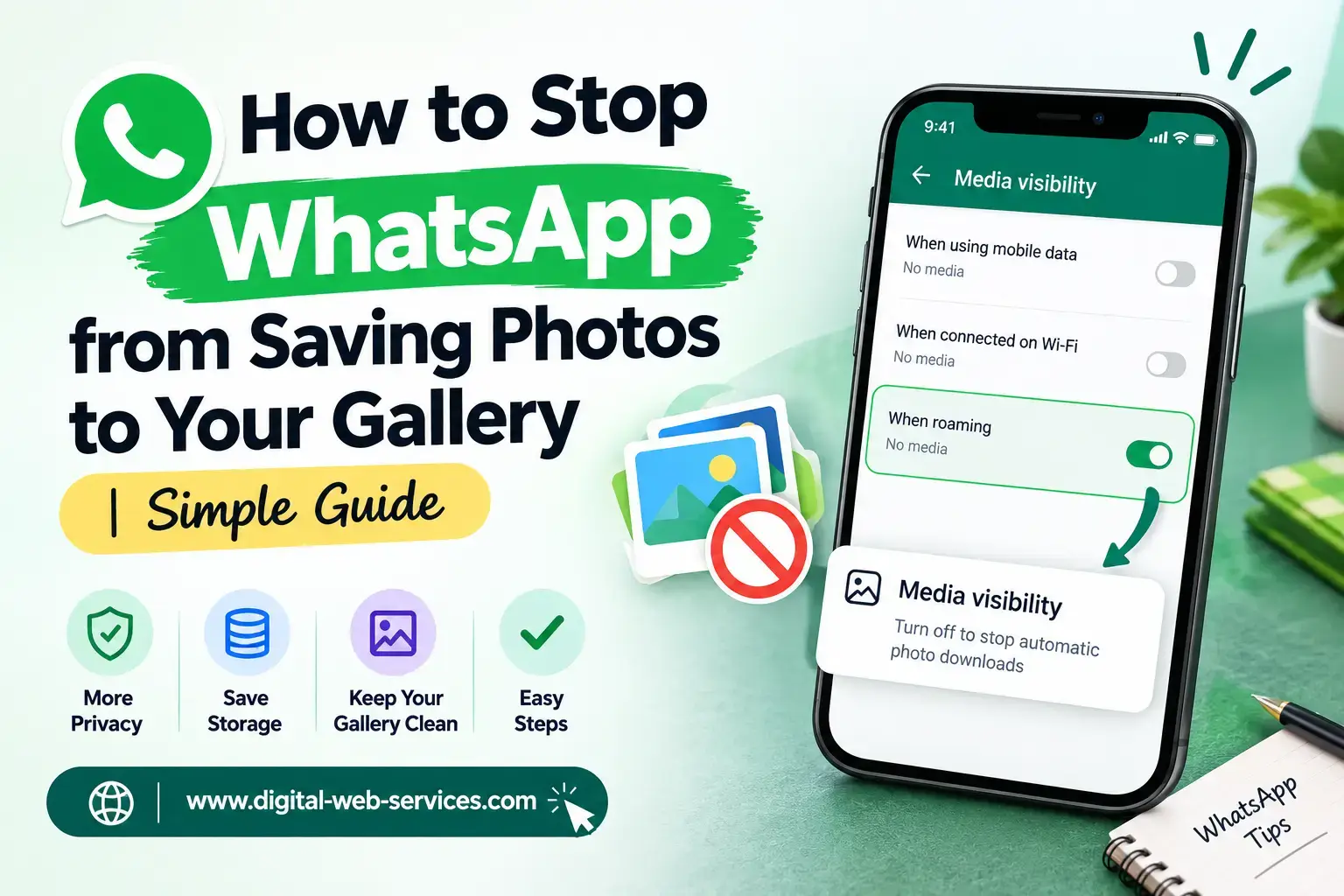
Step 3: Toggle Off Media Auto-Save
On Android, simply turn off Media Visibility. On iPhone, switch off the Save to Camera Roll toggle.
Step 4: Clean Up Old Media (Optional)
This setting only applies to new incoming files. To clear out old junk, open your phone gallery and delete the existing WhatsApp media folder.
What Changes After Disabling This Setting?
Incoming photos and videos will no longer automatically pop up in your phone gallery. However, you can still view them smoothly inside your WhatsApp chats.
If you ever want to keep a specific photo, just tap on it, hit the options menu, and save it manually to your device.
How to View Photos Without Saving Them to Your Gallery
Viewing images inside WhatsApp stays completely seamless even with auto-save disabled:
- Open the specific chat thread containing the picture.
- Tap directly on the image to preview it in full screen.
WhatsApp temporarily displays the photo within the app, keeping your main camera roll completely untouched.
|Also Read: How to Free Up iCloud Storage Without Deleting Your WhatsApp Chats: Step-by-Step Guide
FAQs on Stop WhatsApp from Saving Photos to Your Gallery
1. Can I disable auto-save on an iPhone?
Yes. Go to WhatsApp Settings > Chats and toggle off Save to Camera Roll. Future media will stay inside your chats instead of your main album.
2. Will this delete my existing photos and videos?
No, this setting only affects new incoming files. Your previously downloaded media will remain safely in your phone gallery until you manually delete it.
3. Can I still save specific photos manually?
Absolutely. Just open the image inside the chat, tap the share or options icon, and select Save.
4. Does this setting block both photos and videos?
Yes, toggling off media visibility stops all auto-downloads, including photos, videos, GIFs, and voice notes.
5. How else can I prevent WhatsApp from consuming storage?
Head over to WhatsApp Settings > Storage and Data. Under media auto-download options, set everything to No Media or limit downloads to Wi-Fi only.
Final Thoughts
Disabling automatic media downloads is the fastest way to fix a messy photo gallery and free up phone storage. It takes less than a minute to configure and gives you complete authority over your device media.
Try these simple adjustments today and keep your phone fast, organized, and clutter-free!

Maria Jain is a Senior Content Strategist and Tech Editor at Digital Web Services, with over 6+ years of experience covering digital marketing, website development, and search engine optimization. She specializes in WordPress site architecture, AI technologies, Web Hosting, topical authority models, and hands-on SaaS & affiliate tool reviews. Maria combines data-driven SEO practices with deep web design and technical insights to publish transparent guides, tool comparisons, and strategic tutorials for digital growth.