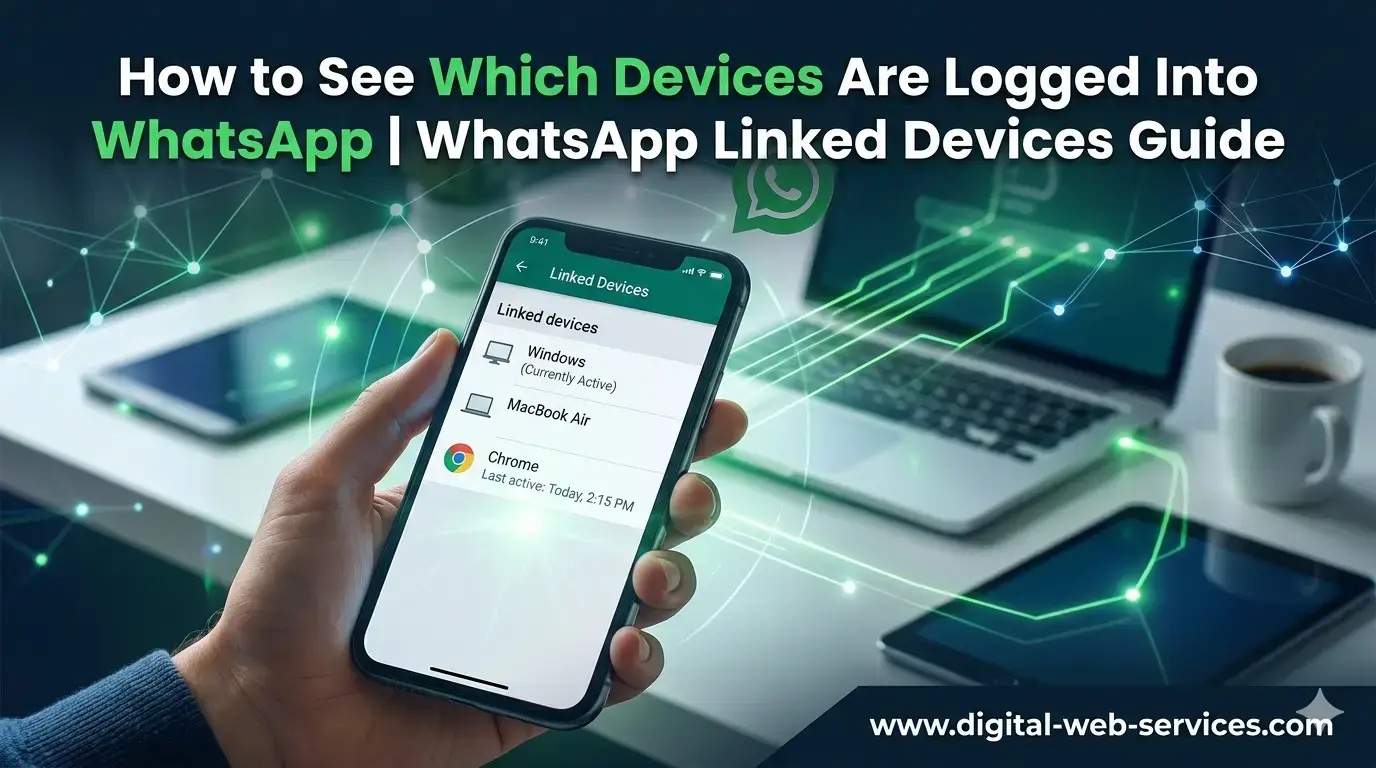
To find which devices are logged into your WhatsApp account, open WhatsApp, go to Linked Devices, and view the list of logged‑in devices. This list shows all phones, tablets, and computers currently connected to your WhatsApp account. If you see any device you don’t recognize, you can immediately log out of it. This helps protect your privacy and keeps your WhatsApp secure. Knowing how to find linked devices on WhatsApp is essential for anyone who cares about account safety and wants full control of their messaging access.
What Is “WhatsApp Linked Devices” and Why Does It Matter?
WhatsApp linked devices are the phones, computers, or tablets connected to your WhatsApp account. When you link a device through WhatsApp Web or WhatsApp Desktop, that device stays logged in until you remove it. Checking WhatsApp linked devices regularly helps protect your messages and stops unauthorized access.
How to Check Linked Devices on WhatsApp (Android & iPhone)?
How to Find Linked Devices on WhatsApp Android
- Open WhatsApp on your Android phone.
- Tap the three dots (menu) in the top‑right corner.
- Select Linked Devices.
- You’ll see a list of all devices logged into your WhatsApp.
How to Check Linked Devices on WhatsApp iPhone
- Open WhatsApp on your iPhone.
- Tap Settings (bottom‑right).
- Select Linked Devices.
- View all active sessions listed.
Each listed device shows the device type and last active time, so you know exactly where your account is used.
How Can You Log Out From Logged‑In WhatsApp Devices?
Once you see the list of WhatsApp linked devices:
- Tap the device you want to remove.
- Select Log out.This instantly stops WhatsApp access from that device.
What to Do If You See Unknown Devices on Your WhatsApp?
If you spot a device you don’t recognize:
- Log out of that device immediately.
- Change your WhatsApp account password.
- Enable two‑step verification for extra safety.By acting quickly, you protect your messages and personal info.
Real Tips and Security Best Practices
- Regularly review your WhatsApp linked devices every few weeks.
- Never share your QR code with strangers.
- Only link WhatsApp on trusted devices.
- Enable face or fingerprint unlock on your phone for WhatsApp.These small steps build strong account security.
| Also Read: How to Check Which Devices Are Logged Into Your Netflix Account
Frequently Asked Questions (FAQ)
How do I find out which devices are linked to WhatsApp?
Open WhatsApp → go to Linked Devices → view all currently logged‑in devices listed there.
Can I see when a device was last active on WhatsApp?
Yes. WhatsApp shows details like device name and last active time on the linked devices screen.
How can I remove a logged‑in device from WhatsApp?
In Linked Devices, tap the device and choose Log out to remove it.
Does logging out of a linked device affect my chats?
No. Your messages remain safe on your phone. Logging out only disconnects the device from your WhatsApp account.
Will WhatsApp notify me if someone logs in on a new device?
WhatsApp may show a notification when a new device is linked, helping you stay alert.
Final Thoughts
Knowing how to see which devices are logged into WhatsApp is a simple but powerful way to maintain privacy and security. Whether you use Android or iPhone, checking WhatsApp linked devices regularly ensures that only trusted devices access your chats.

Maria Jain is a Senior Content Strategist and Tech Editor at Digital Web Services, with over 6+ years of experience covering digital marketing, website development, and search engine optimization. She specializes in WordPress site architecture, AI technologies, Web Hosting, topical authority models, and hands-on SaaS & affiliate tool reviews. Maria combines data-driven SEO practices with deep web design and technical insights to publish transparent guides, tool comparisons, and strategic tutorials for digital growth.