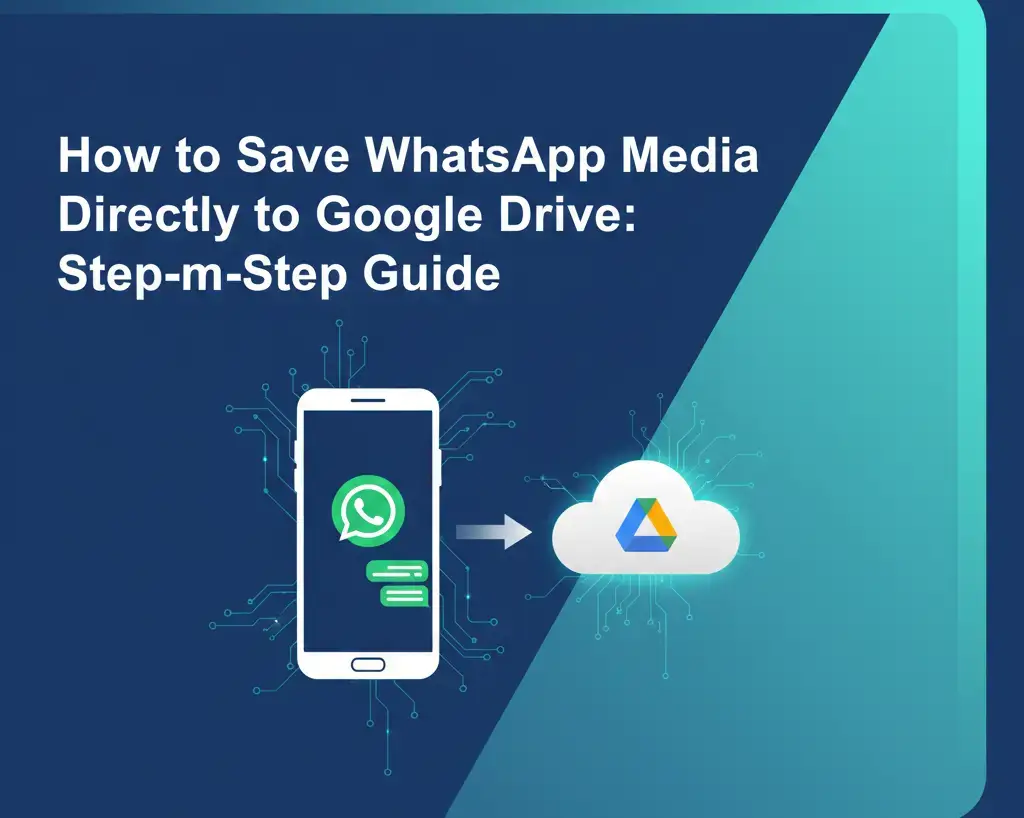
Saving WhatsApp media (photos, videos, documents, and audio files) to Google Drive is a great way to keep your important media safe and easily accessible across devices. WhatsApp has a built-in feature that allows you to back up your chats and media to Google Drive automatically, ensuring you never lose any content. In this article, we’ll walk you through the steps to save WhatsApp media directly to Google Drive and keep everything securely backed up.
Why Save WhatsApp Media to Google Drive?
Saving WhatsApp media to Google Drive offers several benefits:
- Free storage (up to 15 GB with Google Drive)
- Easy access from any device
- Automatic backups to keep your media safe
- Simple recovery if you change or lose your phone
How to Save WhatsApp Media to Google Drive: A Simple Guide
Follow these simple steps to set up automatic backups for your WhatsApp media to Google Drive:
Step 1: Open WhatsApp Settings
- Open WhatsApp on your phone.
- Tap the three dots in the top right corner to open the menu.
- Select Settings from the options.
Step 2: Go to Chat Settings
- In the Settings menu, tap on Chats.
- Tap on Chat backup.
Step 3: Connect Your Google Account
- Under the Google Drive settings section, tap Back up to Google Drive.
- Choose your preferred backup frequency (Daily, Weekly, or Monthly).
- Tip: Select Daily if you want daily backups of all your media.
- Tap Google Account to add or select the Google account you want to use for backups.
Step 4: Choose Your Backup Preferences
- Under Back Up Over, choose Wi-Fi (recommended) or Wi-Fi or cellular if you don’t mind using mobile data for backups.
- Tap Back Up to start the initial backup process.
- This will back up all your media (photos, videos, etc.) to Google Drive.
Step 5: Automatic Backups
Once the initial backup is completed, WhatsApp will automatically back up your chats and media according to the frequency you selected.
How to Save Individual WhatsApp Media Files to Google Drive
While WhatsApp’s built-in backup feature allows you to save all media automatically, you might want to back up specific files or media manually. You can use third-party services like Pabbly Connect (now called Pabbable Connect) to set up automated workflows that upload files to Google Drive as they are received on WhatsApp.
How to Use Pabbable Connect for Automation:
- Set up a Pabbable Connect account.
- Use the WhatsApp API to connect with Google Drive.
- Configure automation rules to upload photos, videos, or documents to Google Drive as soon as they are received.
Note: This method requires more technical setup, but it provides greater control over which files are saved.
| Also Read: How to Set Up Two-Step Verification on WhatsApp
FAQs About Saving WhatsApp Media to Google Drive
1. What happens if I delete WhatsApp?
If you delete WhatsApp, your Google Drive backup will remain intact. You can restore your chats and media when you reinstall WhatsApp, as long as the backup is up to date.
2. How often should I back up WhatsApp to Google Drive?
If you frequently receive media on WhatsApp, setting your backup to Daily is recommended. However, if you only need to back up occasionally, you can set it to Weekly or Monthly.
3. Does backing up media use Google Drive storage?
Yes, WhatsApp backups (including media) count toward your Google Drive storage. However, Google gives you 15 GB of free storage, and WhatsApp backup does not use up your Gmail or Google Photos storage.
4. How can I restore my WhatsApp backup?
To restore a backup, reinstall WhatsApp and verify your phone number. During the setup, WhatsApp will prompt you to restore from your Google Drive backup.
5. Can I back up WhatsApp without Wi-Fi?
Yes, you can choose to back up WhatsApp media over mobile data by selecting Wi-Fi or cellular in the backup settings. However, this might use up your data plan, so Wi-Fi is recommended for large backups.
Conclusion
Saving your WhatsApp media to Google Drive is simple, and it ensures that your important photos, videos, and documents are always safe. Whether you choose automatic backups through WhatsApp or prefer more control using third-party services like Pabbable Connect, the process is easy and convenient. With these steps, you can now easily back up your media and restore it at any time, without the worry of losing important content.

Maria Jain is a Senior Content Strategist and Tech Editor at Digital Web Services, with over 6+ years of experience covering digital marketing, website development, and search engine optimization. She specializes in WordPress site architecture, AI technologies, Web Hosting, topical authority models, and hands-on SaaS & affiliate tool reviews. Maria combines data-driven SEO practices with deep web design and technical insights to publish transparent guides, tool comparisons, and strategic tutorials for digital growth.