Quick Answer
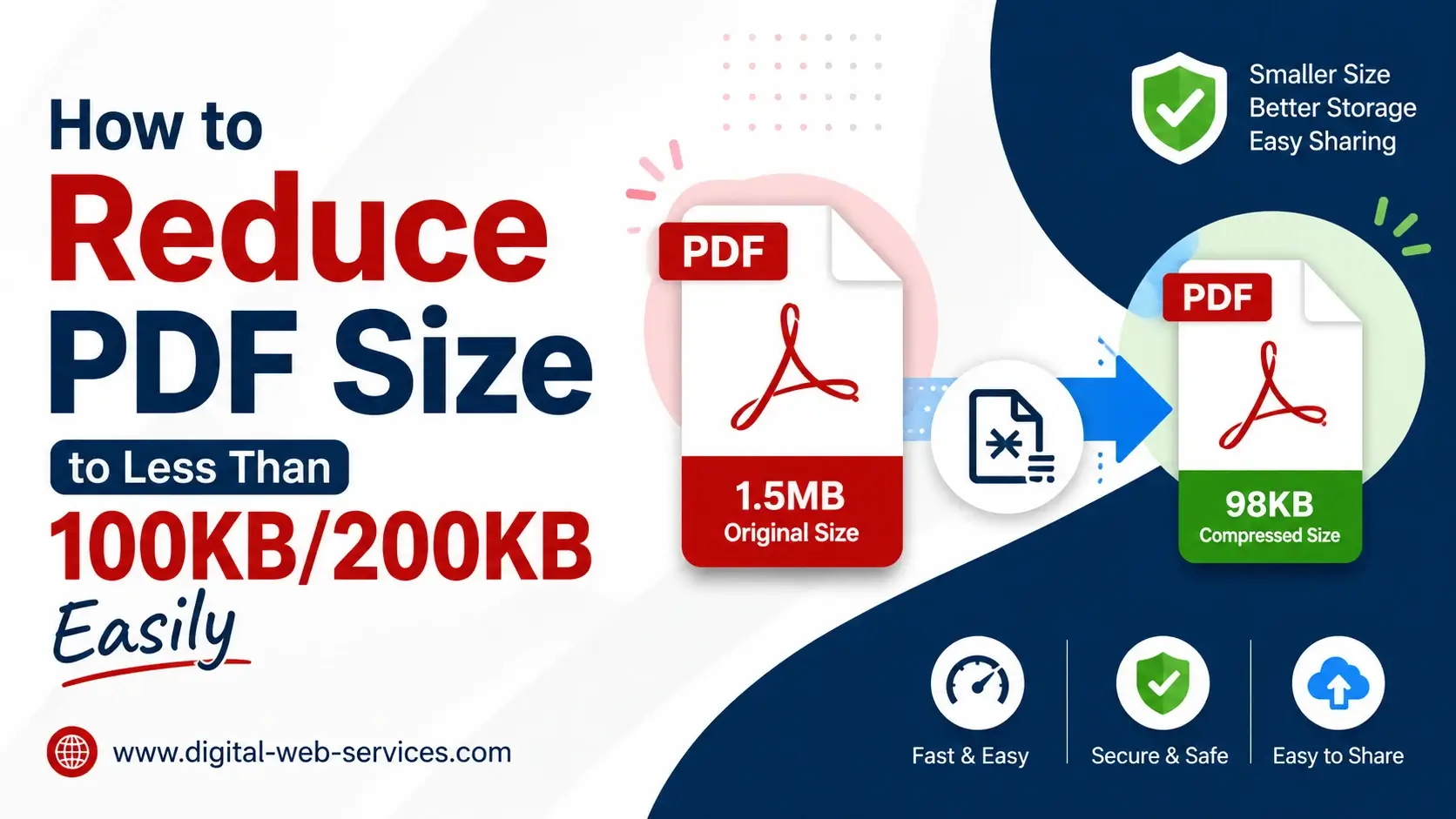
- To reduce PDF size below 100KB or 200KB, use an online PDF compressor, Adobe Acrobat Pro, or export the file with “minimum size” settings.
- For best results, reduce image quality, remove extra fonts, delete unused pages, and flatten the PDF.
- Text-based PDFs are easier to compress than scanned image PDFs.
Introduction
Many websites, job portals, exam forms, government portals, and email platforms ask users to upload a PDF under a fixed size limit. Sometimes the limit is 100KB, 200KB, 500KB, or 1MB. This can be frustrating when your PDF is too large.
The good news is that you can reduce PDF size to less than 100KB or 200KB using simple methods. You do not always need paid software. Free online PDF compressors, Microsoft Word, Google Docs, and Adobe Acrobat Pro can help you make a PDF smaller while keeping it readable.
In this guide, you will learn the best ways to compress PDF file size, reduce scanned PDF size, optimize images, and prepare small PDF files for online upload.
Why PDF Files Become Too Large
Before compressing a PDF, it helps to know why the file size is big. A PDF may become large because it contains:
- High-resolution images
- Scanned pages
- Embedded fonts
- Extra metadata
- Form fields
- Layers and annotations
- Large graphics or charts
A simple text PDF can often be reduced below 100KB easily. But a scanned PDF with photos may need stronger compression.
Best Way to Reduce PDF Size Below 100KB or 200KB
The fastest method is to use a trusted online PDF compressor. These tools let you upload a PDF, choose a compression level, and download a smaller file.
Steps to Compress PDF Online
- Open a trusted PDF compression tool.
- Upload your PDF file.
- Select compression level such as basic, recommended, strong, or extreme.
- Click compress.
- Download the reduced PDF file.
- Check if the file is below 100KB or 200KB.
Online tools are useful when you need quick results and do not want to install software.
How to Reduce PDF Size Using Adobe Acrobat Pro
Adobe Acrobat Pro is one of the best tools for professional PDF compression. It gives more control over image quality, fonts, and file compatibility.
Method 1: Reduced Size PDF
- Open your PDF in Adobe Acrobat Pro.
- Go to File.
- Select Save As Other.
- Click Reduced Size PDF.
- Choose compatibility settings.
- Save the new compressed PDF.
This method is simple and works well for most PDF files.
Method 2: Optimize PDF
For better control, use the Optimize PDF tool.
- Open the PDF in Adobe Acrobat Pro.
- Go to Tools.
- Select Optimize PDF.
- Click Reduce File Size.
- Adjust image, font, and transparency settings if needed.
- Save the optimized PDF.
This is useful when you want to reduce PDF size without losing too much quality.
How to Reduce PDF Size Using Microsoft Word
If your PDF was created from a Word document, the best method is to compress it from the original file.
Steps
- Open the document in Microsoft Word.
- Click File.
- Select Save As or Export.
- Choose PDF.
- Select Minimum size / publishing online.
- Save the file.
This method is great for resumes, forms, assignments, certificates, and text-based documents.
How to Compress PDF Below 100KB
Reducing a PDF below 100KB can be difficult if it has images. Use these tips:
- Remove unnecessary images.
- Convert color images to grayscale.
- Lower image resolution.
- Delete extra pages.
- Remove embedded fonts.
- Flatten form fields and layers.
- Use extreme compression only when quality is not very important.
For online forms, make sure the final PDF is still clear enough to read.
How to Compress PDF Below 200KB
A 200KB PDF size limit is easier to achieve than 100KB. You can usually keep better readability with medium or strong compression.
Best workflow:
- Remove unwanted pages.
- Compress images.
- Use Adobe Acrobat or an online PDF size reducer.
- Save the PDF with reduced compatibility settings.
- Check the final file size.
This works well for documents like ID proofs, application forms, scanned certificates, resumes, and academic documents.
Real Example: Reducing a Scanned PDF
Suppose you scanned a certificate and the PDF size is 2MB. To reduce it below 200KB:
- Crop extra white space around the scan.
- Convert the image to grayscale.
- Reduce image resolution to around 100–150 DPI.
- Use a strong PDF compressor.
- Download and check readability.
This workflow can reduce a large scanned PDF into a small upload-ready file.
PDF Compression Tips Without Losing Readability
To compress PDF without losing quality, avoid using maximum compression immediately. Start with medium compression first. If the file is still too large, use stronger settings.
Helpful tips:
- Use black and white for text documents.
- Avoid unnecessary background designs.
- Keep images only if required.
- Use simple fonts.
- Compress the original document before creating the PDF.
- Always keep a backup of the original file.
Online vs Offline PDF Compression
Online PDF compressors are fast and easy. They are best for normal documents, resumes, and quick uploads.
Offline tools like Adobe Acrobat Pro are better for private, sensitive, or professional documents. They also give more control over quality and compression settings.
If your PDF contains bank details, legal documents, or personal ID proof, using offline software is safer.
Best Keywords Related to This Topic
This article naturally covers important search terms such as:
- reduce PDF size below 100KB
- compress PDF to 200KB
- PDF size reducer
- compress PDF online
- reduce PDF file size
- compress PDF without losing quality
- make PDF smaller
- reduce scanned PDF size
- PDF compressor for online upload
- how to compress PDF file size
Common Mistakes to Avoid
Do not compress the same PDF too many times. It can make text blurry and images unclear.
Do not delete important pages just to meet the size limit. Instead, reduce image quality or remove hidden data.
Do not use unknown websites for sensitive files. Choose trusted tools or offline PDF software.
FAQs
How do I reduce PDF size to less than 100KB?
Use an online PDF compressor with strong or extreme compression. You can also reduce image quality, remove extra pages, flatten the PDF, and save it as a smaller file using Adobe Acrobat or Microsoft Word.
How do I compress PDF to 200KB?
Upload the file to a PDF compressor, choose medium or strong compression, and download the smaller file. If the file is still large, reduce images, remove fonts, and delete unnecessary pages.
Can I reduce PDF size without losing quality?
Yes, but some compression may slightly reduce image quality. For best results, use medium compression and optimize images carefully instead of using extreme compression first.
Why is my PDF still larger than 100KB after compression?
Your PDF may contain scanned images, high-resolution photos, embedded fonts, or hidden data. Remove unnecessary elements and compress images before trying again.
Is it safe to use online PDF compressors?
Trusted online PDF compressors are generally safe for normal files. For sensitive documents, use offline tools like Adobe Acrobat Pro or a desktop PDF compressor.
What is the best size for online form upload?
It depends on the website. Many portals ask for PDFs under 100KB, 200KB, or 500KB. Always check the upload limit before compressing your file.
Can I compress a scanned PDF below 100KB?
Yes, but readability may decrease if the scan has many images. Convert the scan to grayscale, crop extra space, reduce resolution, and use strong compression.
Conclusion
Reducing PDF size to less than 100KB or 200KB is possible with the right method. For quick results, use an online PDF compressor. For better control, use Adobe Acrobat Pro. If you have the original Word file, export it as a minimum-size PDF.
The best approach is to remove unnecessary content, compress images, flatten the file, and keep the document readable. This way, your PDF becomes smaller, faster to upload, and suitable for online forms, emails, and official submissions.

Maria Jain is a Senior Content Strategist and Tech Editor at Digital Web Services, with over 6+ years of experience covering digital marketing, website development, and search engine optimization. She specializes in WordPress site architecture, AI technologies, Web Hosting, topical authority models, and hands-on SaaS & affiliate tool reviews. Maria combines data-driven SEO practices with deep web design and technical insights to publish transparent guides, tool comparisons, and strategic tutorials for digital growth.