Compressing a PDF without losing quality means reducing the file size while keeping the text sharp, images clear, and layout unchanged. The best way is not to simply lower the resolution too much. Instead, you should remove hidden data, optimize images, flatten unnecessary elements, and use the right PDF compressor settings. For most users, the easiest method is to use a trusted online PDF compressor, Mac Preview, Microsoft Print to PDF, or Adobe Acrobat’s “Optimized PDF” option. Text-based PDFs can usually be compressed heavily without visible quality loss, while image-heavy PDFs need balanced compression. Always save a copy before compressing so you can compare the original and compressed PDF.
What Does It Mean to Compress a PDF Without Losing Quality?
To compress PDF without losing quality means making the PDF file smaller while keeping it readable and professional. A good compression process reduces extra file weight without damaging the important parts of the document.
A PDF can become large because of:
- High-resolution images
- Embedded fonts
- Hidden metadata
- Scanned pages
- Layers, forms, or comments
- Unused objects inside the file
- Large graphics or design elements
When you use the right PDF compression method, the file size becomes smaller, but the quality remains good enough for email, upload forms, printing, sharing, and business use.
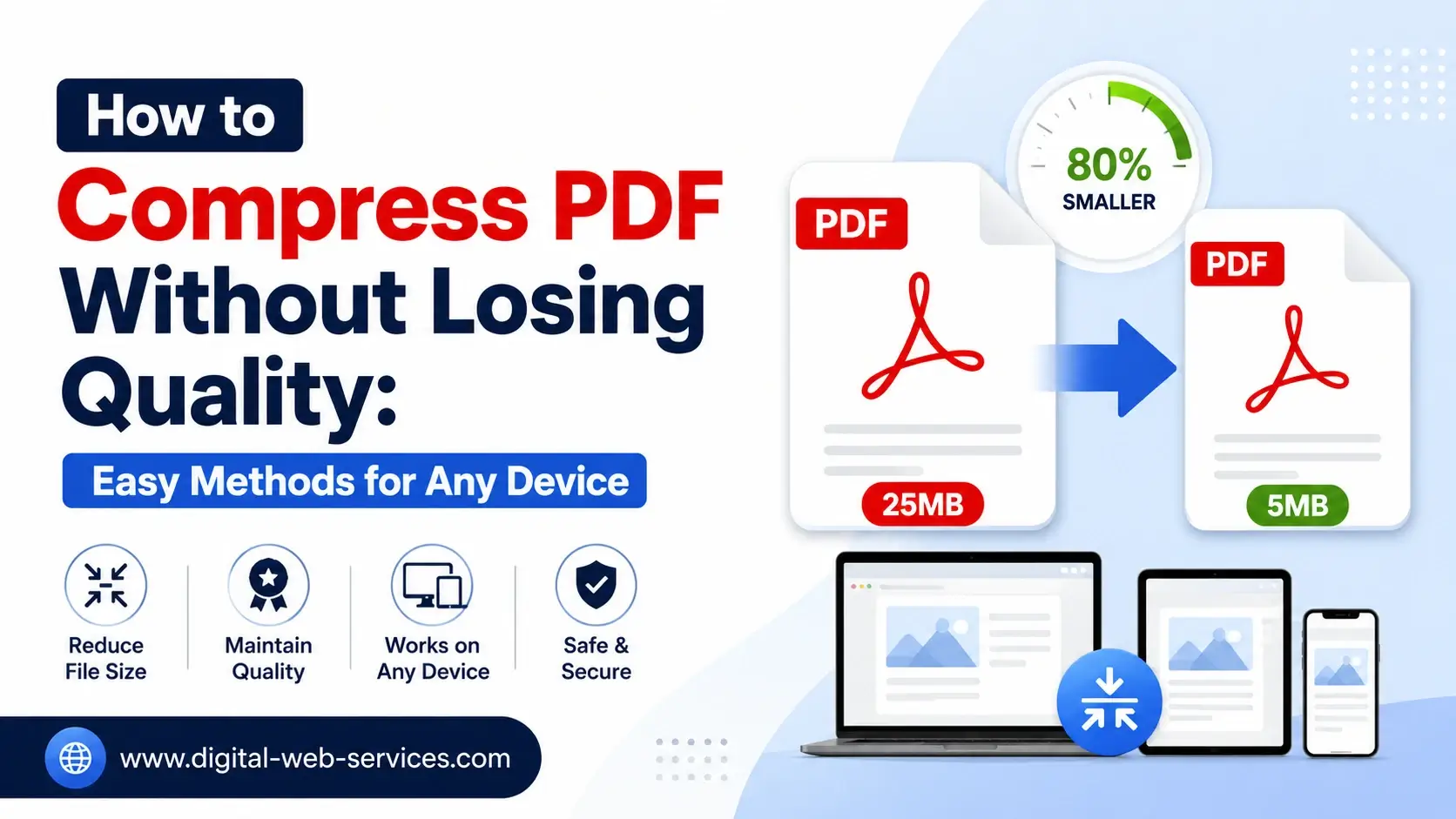
For example, a 25 MB company brochure may contain large product photos. A smart PDF compressor can reduce it to 5 MB by optimizing images and removing hidden data, while the brochure still looks clear on screen.
Why Do People Need to Reduce PDF File Size?
People usually search for how to reduce PDF file size because large PDF files are difficult to share, upload, or store. Many websites, job portals, government portals, schools, banks, and email services have file size limits.
Common reasons include:
- Sending a PDF by email
- Uploading a resume, certificate, invoice, or report
- Submitting documents to an online form
- Saving storage space
- Making PDFs load faster on websites
- Sharing files on WhatsApp, Google Drive, or other platforms
- Reducing scanned PDF size for official use
A smaller PDF is easier to manage, faster to open, and better for both users and search engines when used on a website.
How Does PDF Compression Work?
PDF compression works by reducing unnecessary file weight. It may compress images, remove hidden metadata, delete unused objects, simplify fonts, flatten layers, and optimize the internal structure of the file.
There are usually two types of PDF compression:
Lossless PDF Compression
Lossless compression reduces PDF size without removing visible details. It keeps the document almost the same. This is best for legal documents, contracts, reports, text files, invoices, and important records.
Lossy PDF Compression
Lossy compression makes the file much smaller by lowering image quality or resolution. This is useful when you need a very small PDF, but it may reduce image sharpness if used too strongly.
For most users, balanced compression is the best choice because it reduces file size while maintaining good visual quality.
How Can You Compress PDF Without Losing Quality Online?
The easiest way to compress PDF without losing quality online is to use a trusted browser-based PDF compressor. Online tools are useful when you do not want to install software.
Popular options include Adobe Acrobat Online Compressor, iLovePDF, Smallpdf, PDFgear, and similar tools. Adobe’s online PDF compressor allows users to compress PDFs directly in a browser, while iLovePDF offers compression levels such as extreme, recommended, and less compression. Smallpdf also promotes high-quality PDF compression with options for different compression strengths.
Steps to Compress PDF Online
- Open a trusted online PDF compressor.
- Upload or drag and drop your PDF file.
- Choose the compression level.
- Select balanced or recommended compression for best quality.
- Download the compressed PDF.
- Open the file and compare it with the original.
Best Online Compression Setting
Choose “recommended compression,” “medium compression,” or “balanced compression” when available. Avoid “extreme compression” unless file size is more important than image clarity.
How Can You Compress a PDF on Windows Without Losing Quality?
You can reduce PDF file size on Windows using Microsoft Print to PDF. This method is simple and does not need extra software.
Steps for Windows
- Open the PDF in Microsoft Edge, Chrome, or any PDF viewer.
- Press Ctrl + P.
- Select Microsoft Print to PDF as the printer.
- Click Print.
- Save the new PDF with a different name.
- Check the new file size and quality.
This method can reduce PDF size when the file contains extra data, comments, form fields, or unnecessary internal elements. However, it may not always work well for every PDF. If your PDF has many high-resolution images, an advanced PDF compressor may give better results.
How Can You Compress a PDF on Mac Without Losing Quality?
Mac users can compress PDF files using Preview. This is a built-in app and does not require extra software.
Steps for Mac Preview
- Open the PDF in Preview.
- Click File.
- Select Export.
- Choose PDF as the format.
- Select Reduce File Size under Quartz Filter.
- Save the compressed PDF with a new name.
Mac Preview is quick, but sometimes the default “Reduce File Size” filter may reduce image quality too much. For image-heavy PDFs, it is better to use a professional tool or custom Quartz filter to control quality more carefully.
How Can You Compress PDF Using Adobe Acrobat Pro?
Adobe Acrobat Pro is one of the best options for advanced PDF optimization. It gives more control than basic online tools.
Steps in Adobe Acrobat Pro
- Open your PDF in Adobe Acrobat Pro.
- Go to File.
- Select Save As Other.
- Choose Optimized PDF.
- Use Audit Space Usage to see what is making the file large.
- Downsample only heavy images if needed.
- Remove unnecessary metadata, objects, and embedded items.
- Save the optimized PDF.
Adobe Acrobat’s advanced controls are useful for business files, print files, reports, ebooks, manuals, and documents where quality matters.
Which Method Is Best for Compressing PDF Without Quality Loss?
The best method depends on your PDF type.
| PDF Type | Best Compression Method | Why It Works |
|---|---|---|
| Text-based PDF | Online compressor or Adobe Acrobat | Text stays sharp and file size reduces easily |
| Scanned PDF | OCR + image optimization | Makes scanned pages searchable and smaller |
| Image-heavy PDF | Adobe Acrobat Pro or balanced online compression | Better control over image quality |
| Resume or certificate | Online PDF compressor | Fast and easy for upload limits |
| Business report | Adobe Acrobat Optimized PDF | Keeps formatting professional |
| Mac document | Preview or online compressor | Built-in and simple |
| Windows document | Microsoft Print to PDF or online tool | No installation needed |
For most users, a trusted online PDF compressor is the fastest solution. For professional documents, Adobe Acrobat Pro gives better control.
What Is the Best Example of Compressing PDF Without Losing Quality?
Let’s say you have a 20 MB PDF report that includes text, charts, and images. You need to upload it to a website that accepts only files under 5 MB.
Example Workflow
First, make a copy of the original PDF. Then open an online PDF compressor and choose recommended compression. After compression, check the file size. If the file becomes 4.8 MB and the text, charts, and images still look clear, the compression is successful.
If the file is still too large, open it in Adobe Acrobat Pro and check space usage. You may find that high-resolution images are using most of the file size. In that case, downsample only those images instead of reducing the entire PDF quality.
Result
Original file: 20 MB
Compressed file: 4.8 MB
Quality: Text sharp, images clear, layout unchanged
This is the right way to reduce PDF size without visible quality loss.
How Do You Compress a Scanned PDF Without Losing Quality?
Scanned PDFs are often large because each page is saved like an image. To compress a scanned PDF without losing quality, you need to optimize the images carefully.
Best Steps for Scanned PDFs
- Use OCR to make the scanned text searchable.
- Remove blank pages.
- Crop extra borders.
- Use grayscale instead of full color if color is not needed.
- Use 150–200 DPI for screen reading.
- Use 300 DPI if the PDF is needed for printing.
- Choose balanced compression.
Do not use extreme compression for scanned certificates, IDs, legal papers, or documents with small text. It may make the text blurry.
What Compression Settings Keep PDF Quality High?
The best PDF compression settings depend on how the file will be used.
For Email or Online Upload
Use medium compression. Keep images around 150 DPI if the PDF is mainly for screen reading.
For Printing
Use light compression. Keep images around 300 DPI for print clarity.
For Text Documents
Use lossless compression. Text files can become smaller without visible quality loss.
For Image-Based PDFs
Use balanced compression. Do not reduce image resolution too much.
For Legal or Official Documents
Use trusted tools, avoid extreme compression, and keep a backup of the original file.
A good rule is simple: compress enough to meet the file size limit, but not more than needed.
What Are the Best Free Tools to Compress PDF Without Losing Quality?
There are many free PDF compressor tools available. Some popular options are:
Adobe Acrobat Online Compressor
Good for users who want a trusted brand and simple browser-based PDF compression. Adobe states that its online compressor can reduce PDF file sizes directly from the browser.
iLovePDF Compressor
Useful because it offers different compression levels, including extreme, recommended, and less compression. Recommended compression is usually best for balancing file size and quality.
Smallpdf Compressor
Good for quick PDF compression and simple use. Smallpdf describes its tool as a way to reduce PDF size without losing quality and offers different compression options.
PDFgear Online
A useful option for users looking for a free PDF compressor with simple online access.
Mac Preview
Best for Mac users who want a built-in method.
Microsoft Print to PDF
Best for Windows users who want a simple no-installation method.
Is It Safe to Compress PDF Online?
It can be safe to compress PDF online if you use a trusted tool and avoid uploading sensitive documents to unknown websites.
For normal files like brochures, ebooks, study notes, resumes, or public reports, online PDF compressors are convenient. But for confidential files, such as bank statements, legal agreements, business contracts, medical documents, or identity documents, use offline software whenever possible.
Safety Tips
- Use trusted PDF compressor websites.
- Check whether the site mentions file privacy or deletion.
- Avoid unknown tools with too many ads.
- Do not upload private documents to random websites.
- Use Adobe Acrobat Pro or offline tools for confidential files.
- Always keep the original file backup.
Trust and privacy are important parts of choosing the best PDF compression method.
How Can You Compress PDF to 100KB, 200KB, 300KB, or 1MB?
Many users search for terms like compress PDF to 100KB, compress PDF to 200KB, compress PDF to 300KB, or compress PDF to 1MB. This is common when uploading documents to government portals, exam forms, job applications, or school websites.
Adobe provides dedicated pages for compressing PDFs to common target sizes such as 100KB, 200KB, 300KB, and 1MB, but very small target sizes are easier to reach when the original PDF is mostly text and not full of high-resolution images. Adobe notes that compressing to 300KB is more practical when the original file is relatively small and mostly text-based.
Practical Tips for Target Size Compression
- For 100KB: Use text-only PDF if possible.
- For 200KB: Remove images or use low image resolution.
- For 300KB: Use balanced compression for simple documents.
- For 1MB: Most resumes, forms, and reports can fit easily.
- For scanned PDFs: Crop pages and use grayscale before compression.
If a file contains many photos, it may not be possible to compress it to 100KB without visible quality loss.
How Do You Check If PDF Quality Is Still Good After Compression?
After reducing PDF file size, always check the compressed file before sharing or uploading.
Quality Check List
Open the compressed PDF and check:
- Is the text still sharp?
- Are images still clear?
- Are tables readable?
- Are signatures visible?
- Are stamps or seals clear?
- Is the layout unchanged?
- Are links working?
- Are form fields still usable?
- Is the file size within the required limit?
Zoom in to 150% or 200%. If the text and images still look clear, the PDF quality is usually acceptable.
What Mistakes Should You Avoid When Compressing a PDF?
Many people reduce PDF size too much and damage the quality. Avoid these common mistakes:
Using Extreme Compression First
Extreme compression can make images blurry. Start with recommended or medium compression.
Not Keeping the Original File
Always save a backup before compressing.
Uploading Confidential Files to Unknown Tools
Use offline software for private documents.
Compressing the Same PDF Again and Again
Repeated compression can reduce quality. Go back to the original file if you need to try different settings.
Ignoring Image Size Before Creating PDF
If images are too large before making the PDF, the final PDF will also be large.
Choosing the Wrong DPI
Low DPI is fine for screen use, but print documents need higher DPI.
How Can You Create a Smaller PDF From the Start?
The best way to avoid large PDF files is to create optimized PDFs from the beginning.
Before Creating the PDF
- Resize large images before adding them.
- Use JPG for photos and PNG for simple graphics.
- Avoid unnecessary high-resolution images.
- Use standard fonts.
- Remove unused pages.
- Avoid too many design layers.
- Export with “smallest file size” or “optimized PDF” settings.
This is especially useful for ebooks, reports, product catalogs, presentations, and website PDFs.
What Is the Best Workflow to Compress PDF Without Losing Quality?
Here is a simple expert workflow:
- Make a copy of the original PDF.
- Check the current file size.
- Identify whether the PDF is text-based, scanned, or image-heavy.
- Try balanced compression first.
- Open the compressed PDF and compare quality.
- If the file is still large, remove unnecessary images or pages.
- Use advanced optimization for professional files.
- Save the final version with a clear file name.
Example file name:
company-report-compressed.pdf
This workflow protects quality and helps you avoid mistakes.
Final Answer: What Is the Best Way to Compress PDF Without Losing Quality?
The best way to compress PDF without losing quality is to use balanced compression, not extreme compression. For quick use, choose a trusted online PDF compressor. For Mac, use Preview. For Windows, try Microsoft Print to PDF. For professional control, use Adobe Acrobat Pro’s Optimized PDF feature.
If your PDF is mostly text, you can reduce file size easily with little or no quality loss. If your PDF has many images or scanned pages, optimize images carefully and avoid reducing the resolution too much. Always check the compressed PDF before uploading or sending it.
FAQs About Compressing PDF Without Losing Quality
Q: How do I compress a PDF without losing quality?
Use a trusted PDF compressor and choose balanced or recommended compression. This reduces file size while keeping text sharp and images clear. For best results, avoid extreme compression and compare the compressed file with the original.
Q: What is the best free way to reduce PDF file size?
The best free way is to use an online PDF compressor such as Adobe Acrobat Online, iLovePDF, Smallpdf, or PDFgear. Mac users can also use Preview, while Windows users can try Microsoft Print to PDF.
Q: Does compressing a PDF reduce quality?
PDF compression may reduce quality if you use strong or extreme compression. However, lossless or balanced compression can make the PDF smaller without visible quality loss, especially for text-based documents.
Q: How can I compress PDF to 1MB without losing quality?
Use balanced compression first. If the file is still larger than 1MB, remove unnecessary pages, reduce large images, crop scanned pages, or use Adobe Acrobat Pro to optimize heavy elements. Text-based PDFs are easier to compress to 1MB.
Q: Can I compress a scanned PDF without making it blurry?
Yes. Use OCR, crop extra borders, remove blank pages, and choose medium compression. Avoid very low DPI settings because they can make scanned text blurry and hard to read.
Q: How do I compress a PDF on Mac?
Open the PDF in Preview, go to File, choose Export, select PDF format, and apply the Reduce File Size Quartz Filter. Save it as a new file and check the quality.
Q: How do I compress a PDF on Windows?
Open the PDF in a browser or PDF viewer, press Ctrl + P, choose Microsoft Print to PDF, and save the file with a new name. This can reduce file size in many cases.
Q: What is the safest way to compress confidential PDFs?
Use offline software such as Adobe Acrobat Pro or another trusted desktop PDF tool. Avoid uploading confidential files like contracts, bank statements, medical records, or identity documents to unknown online tools.
Q: Why is my PDF file so large?
Your PDF may be large because it contains high-resolution images, scanned pages, embedded fonts, metadata, comments, forms, layers, or unused objects. Optimizing these elements can reduce the file size.
Q: Can I compress PDF to 100KB without losing quality?
It depends on the original file. A simple text-based PDF may compress to 100KB without visible quality loss. A scanned or image-heavy PDF may not reach 100KB unless image quality is reduced.
Q: Is online PDF compression good for SEO?
Yes, if you use PDFs on your website. Smaller PDF files load faster, improve user experience, and make downloads easier. However, the PDF should still be readable, accessible, and properly named.
Q: What is the best compression level for PDF?
Recommended, medium, or balanced compression is best for most users. It reduces file size while keeping quality acceptable. Use extreme compression only when the file size limit is more important than image clarity.

Maria Jain is a Senior Content Strategist and Tech Editor at Digital Web Services, with over 6+ years of experience covering digital marketing, website development, and search engine optimization. She specializes in WordPress site architecture, AI technologies, Web Hosting, topical authority models, and hands-on SaaS & affiliate tool reviews. Maria combines data-driven SEO practices with deep web design and technical insights to publish transparent guides, tool comparisons, and strategic tutorials for digital growth.