Quick Answer:
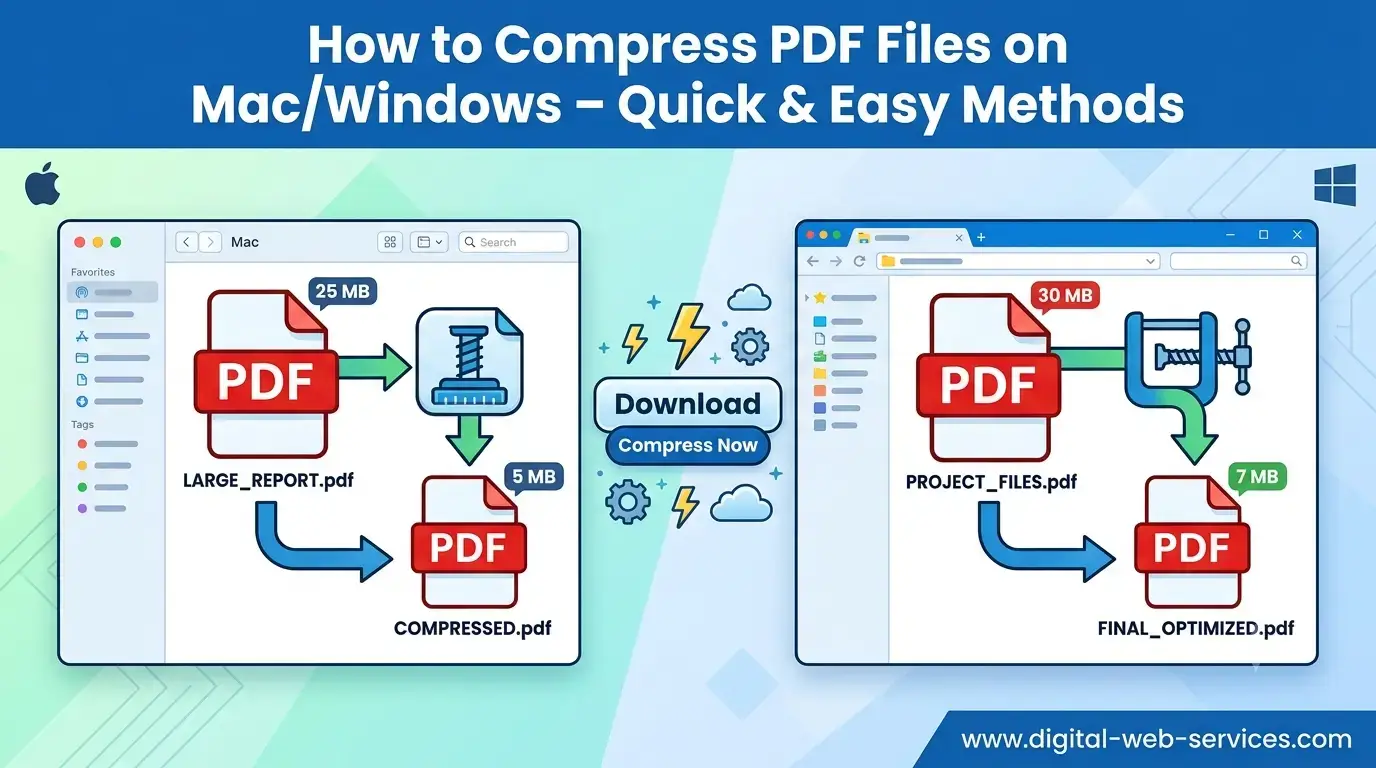
- On Mac, use the built-in Preview app → Export → Quartz Filter → Reduce File Size.
- On Windows, use free desktop apps like PDFgear or iLovePDF Desktop to compress PDFs.
- Online tools like Adobe Acrobat Online or Smallpdf allow quick compression without installing software.
Introduction
PDF files are essential for work, school, and personal use because they preserve formatting and layout. However, large PDFs can slow down file transfers, consume storage, and make sharing difficult. If you are searching for “how to compress PDF files on Mac or Windows”, this guide provides easy, step-by-step methods that anyone can follow.
We’ll cover native solutions for Mac, free software options for Windows, and online PDF compressors that work on both platforms, helping you reduce file size without losing quality.
Why Compress PDFs
Reducing PDF size is important for multiple reasons:
- Faster sharing via email, messaging apps, or cloud storage.
- Reduced storage usage on computers, drives, and cloud platforms.
- Better performance when opening large files on older devices.
Many PDFs include high-resolution images, embedded fonts, or scanned content that significantly increase file size. Using reliable compression tools ensures your PDFs remain efficient, professional, and easy to handle.
How to Compress PDF Files on Mac
Mac users benefit from a built-in PDF compression tool through the Preview app. This method requires no additional software and preserves good document quality.
Steps:
- Right-click your PDF and open it with Preview.
- Click File → Export (avoid “Export as PDF”).
- In the Quartz Filter dropdown, select Reduce File Size.
- Choose a save location and click Save.
✅ Pro Tip: For large PDFs with many images, consider lowering image resolution before exporting to maximize file size reduction.
SEO keywords naturally included: compress PDF Mac, reduce PDF file size, Preview app PDF, shrink PDF Mac.
How to Compress PDF Files on Windows
Windows does not have a native PDF compressor, but several safe and free tools are available.
Option 1: Desktop Apps
Recommended tools: PDFgear Desktop, iLovePDF Desktop
Steps:
- Download and install a reliable PDF compressor.
- Open the program and select Compress PDF.
- Drag and drop your PDF file.
- Choose a compression level (Low, Medium, or High).
- Click Compress and save the file.
This method is ideal for offline usage and batch processing multiple PDFs.
Option 2: Online Tools (Mac & Windows)
For users who prefer not to install software, online compressors are fast and secure.
Steps:
- Go to a trusted website like Adobe Acrobat Online PDF Compressor or Smallpdf.
- Upload your PDF.
- Select the desired compression level.
- Click Compress and download your optimized file.
Benefits: Works on any device, requires no installation, and allows easy access on work computers or shared devices.
SEO keywords naturally included: compress PDF Windows, online PDF compressor, reduce PDF size online, shrink PDF file.
Advanced Tips for Effective PDF Compression
- Remove unnecessary images and pages before compression.
- Embed only required fonts to reduce file size.
- Batch compress multiple PDFs using software like PDFgear for efficiency.
- Backup original files to avoid accidental loss of quality.
Example Workflow:
- A 60 MB PDF containing charts and images can be reduced to 15–20 MB using Advanced Compression in PDFgear or Smallpdf, making it easier to email or upload.
Frequently Asked Questions (FAQs)
Q1: Can I compress a PDF without losing quality?
A1: Yes, both Mac Preview and Windows apps allow compression with minimal quality loss. Advanced tools let you control image resolution and font embedding.
Q2: Are online PDF compressors safe to use?
A2: Trusted websites like Adobe Acrobat Online and Smallpdf are secure and delete files after processing. Avoid unknown or suspicious platforms.
Q3: How do I compress multiple PDFs at once?
A3: Use desktop apps like PDFgear or iLovePDF Desktop which offer batch compression options.
Q4: What is the best compression level to use?
A4: Medium compression is recommended for balance between file size and document quality. High compression may reduce image clarity.
Q5: Can compressed PDFs be used for professional printing or eBooks?
A5: Yes, using Advanced Compression tools ensures that print quality is preserved while significantly reducing file size.
Conclusion
Compressing PDF files on Mac and Windows is quick, secure, and essential for efficient file sharing and storage. By using:
- Mac Preview app for native compression,
- Windows desktop apps like PDFgear,
- Online PDF compressors for fast browser-based solutions,
you can reduce PDF size effectively without sacrificing quality. This ensures faster emailing, better storage management, and professional-ready PDFs for any purpose.

Maria Jain is a Senior Content Strategist and Tech Editor at Digital Web Services, with over 6+ years of experience covering digital marketing, website development, and search engine optimization. She specializes in WordPress site architecture, AI technologies, Web Hosting, topical authority models, and hands-on SaaS & affiliate tool reviews. Maria combines data-driven SEO practices with deep web design and technical insights to publish transparent guides, tool comparisons, and strategic tutorials for digital growth.