
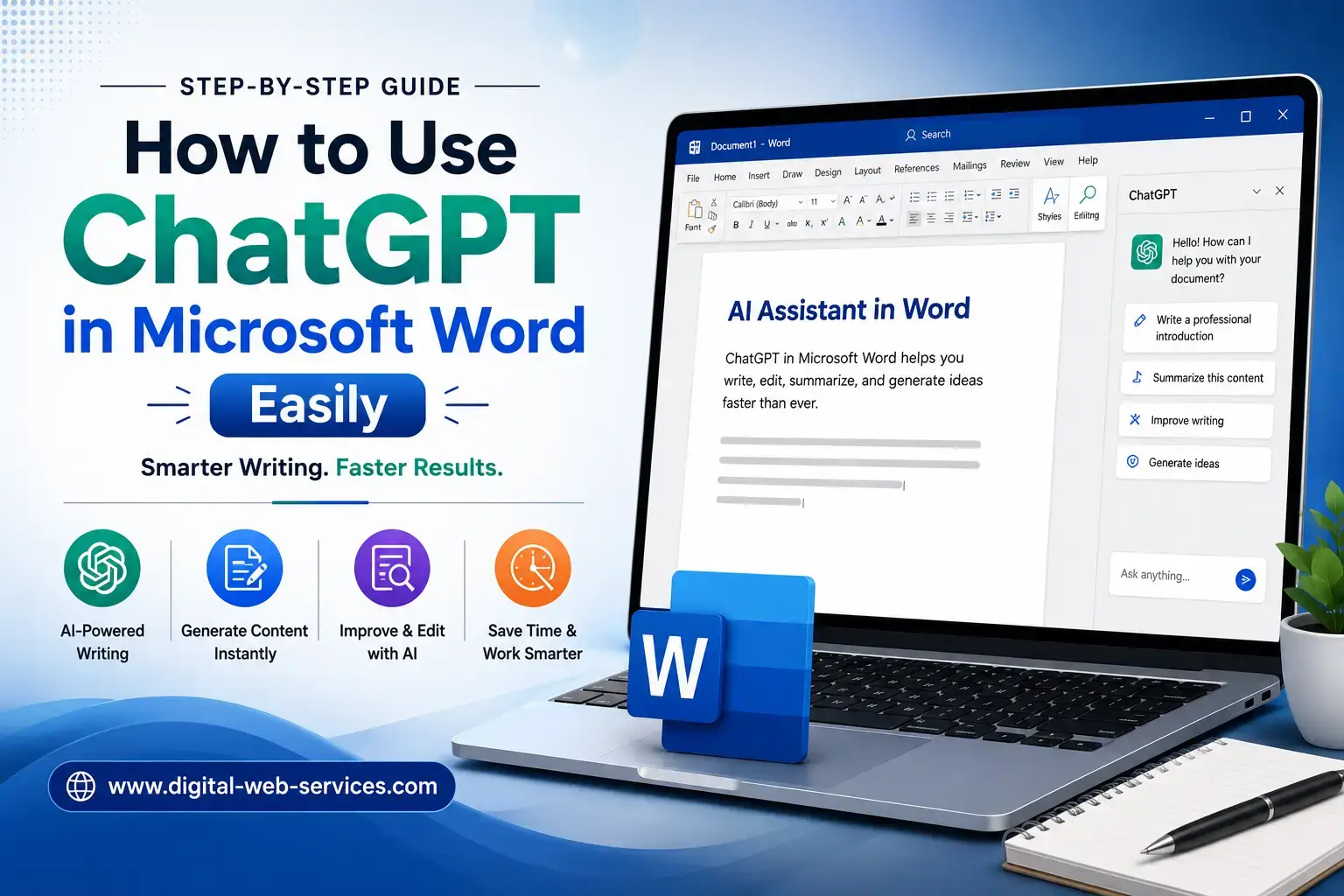
You can use ChatGPT in Microsoft Word in four practical ways: use Microsoft Copilot inside Word, install a trusted third-party ChatGPT Word add-in, upload your Word document to ChatGPT, or copy text between Word and ChatGPT.
Microsoft Copilot offers the smoothest built-in experience, while external add-ins may provide more specialised writing tools. The right option depends on your Microsoft 365 subscription, privacy needs and the type of document you are creating.
What Is the Easiest Way to Use ChatGPT in Microsoft Word?
The easiest method is to use Microsoft Copilot in Word because it works directly inside the document. You can ask it to draft content, rewrite selected text, summarise a document, identify action points and improve the structure without moving between different applications.
However, Copilot is not available with every Microsoft 365 plan. If your subscription does not include it, you can install a third-party ChatGPT Word add-in or work with your document through the ChatGPT website.
Here is a simple comparison:
| Method | Best For | Additional Cost | Works Inside Word |
|---|---|---|---|
| Microsoft Copilot | Everyday writing, rewriting and summarising | May require an eligible Microsoft 365 plan | Yes |
| ChatGPT Word add-in | Specialised AI writing tools | Depends on the add-in | Yes |
| Uploading a Word file to ChatGPT | Reviewing or improving complete documents | Free or paid ChatGPT plan | No |
| Copying and pasting | Quick edits and occasional use | Usually free | No |
Does Microsoft Word Have ChatGPT Built In?
Microsoft Word does not currently include a built-in product specifically branded as ChatGPT. Its native AI assistant is Microsoft Copilot, which uses advanced AI technology but remains a separate Microsoft product.
Most add-ins using names such as “ChatGPT for Word”, “GPT for Word” or “AI Writer for Word” are made by third-party developers.
That distinction matters. A third-party add-in may still be useful, but you should check its publisher, permissions, privacy policy, pricing and user reviews before giving it access to a document.
Method 1: How Do You Use Microsoft Copilot in Word?
Microsoft Copilot is the most direct way to use AI in Microsoft Word. It can draft new content, rewrite paragraphs, answer questions about a document and create summaries from existing text.
Step 1: Open Microsoft Word
Open Word on your desktop or visit Word through Microsoft 365 online. Sign in using the Microsoft account connected to your eligible subscription.
Step 2: Find the Copilot Button
Open a blank document or an existing file. Look for the Copilot button on the Home tab or near the upper-right area of the Word window.
Copilot should appear in supported Microsoft 365 applications when the user has an eligible subscription. Its availability may also depend on organisational settings, account type and application version.
Step 3: Open the Copilot Panel
Select the Copilot icon to open the AI panel. You can now enter an instruction in natural language.
For example:
Write a professional introduction for a digital marketing proposal aimed at a small hotel group.
You can accept the response, ask for another version or give Copilot more instructions.
Step 4: Rewrite Existing Text
Select the paragraph you want to improve and choose the Copilot option beside the selected content.
Try a prompt such as:
Rewrite this paragraph in clear UK English. Keep the meaning unchanged and reduce the length by 20%.
Copilot can produce alternative versions, allowing you to compare them before replacing your original text.
Step 5: Summarise the Document
Open Copilot and ask:
Summarise this document in five bullet points. Include the main decision, risks and next steps.
Copilot can analyse the document and return a summary, key takeaways, unanswered questions or action items.
What Can Copilot in Word Do?
You can use Copilot in Word to:
- Draft letters, reports, articles and proposals
- Rewrite confusing or repetitive paragraphs
- Make content shorter or more detailed
- Summarise long Word documents
- Extract tasks, deadlines and decisions
- Change the tone of a document
- Turn notes into organised sections
- Ask questions about selected text
- Create tables from written information
- Suggest headings and conclusions
Method 2: How Do You Add a ChatGPT Add-In to Microsoft Word?
A ChatGPT Word add-in places an AI assistant in the Word ribbon or sidebar. The exact interface varies because different companies develop these tools.
Step 1: Open the Microsoft Add-Ins Store
Open Word and select one of the following options, depending on your version:
- File > Get Add-ins
- Home > Add-ins
- Insert > Get Add-ins
Step 2: Search for an AI Add-In
Search using terms such as:
- ChatGPT for Word
- GPT for Word
- AI writing assistant
- AI document editor
- ChatGPT Word add-in
Open the listing and check whether the add-in specifically supports Microsoft Word. Some products are designed only for Excel, PowerPoint or Outlook.
Step 3: Check the Publisher and Permissions
Before selecting Add, review:
- The developer or publisher
- Recent customer reviews
- Pricing and usage limits
- Privacy policy
- Data retention policy
- Requested document permissions
- Whether an OpenAI API key is required
- Whether information is sent to external servers
Do not assume an add-in is made by OpenAI simply because “ChatGPT” or “GPT” appears in its name.
Step 4: Install the Add-In
Select Add and accept the required terms. The add-in should then appear under the Home tab, Add-ins menu or My Add-ins section.
Open it to display the AI sidebar.
Step 5: Sign In or Add an API Key
Some add-ins require you to create an account with the developer. Others ask you to enter an OpenAI API key.
An API key is not the same as a ChatGPT Plus subscription. API usage may be billed separately, depending on the tool and account configuration.
Never publish your API key, paste it into a shared document or send it to another person.
Step 6: Select Text and Enter a Prompt
Highlight the text you want the AI to review. Then enter an instruction in the sidebar.
For example:
Rewrite the selected text for a non-technical audience. Use short sentences and keep all numbers unchanged.
Depending on the add-in, you may see options such as Insert, Replace, Rewrite, Summarise or Translate.
Method 3: How Do You Upload a Word Document to ChatGPT?
You do not need an add-in to use ChatGPT with a Microsoft Word document. ChatGPT supports file uploads, including text-rich Word documents, allowing you to ask questions about the file or improve its content.
Step 1: Save the Document as a DOCX File
In Microsoft Word, select:
File > Save As > Word Document (.docx)
A DOCX file is generally easier for ChatGPT to process than an older DOC file.
Step 2: Upload the Document
Open ChatGPT and use the attachment button to upload your Word file.
You may also be able to select a document from a connected cloud storage service, depending on the features available on your account.
Step 3: Give ChatGPT a Specific Task
Avoid using a vague request such as “improve this document”. Explain exactly what you want changed.
A better prompt would be:
Review the uploaded Word document for grammar, clarity and repetition. Keep the existing headings and factual information. Suggest changes section by section without rewriting the complete document at once.
Step 4: Review the Suggested Changes
Check every recommendation before adding it to your document. Pay special attention to:
- Names
- Statistics
- Dates
- Legal statements
- Medical information
- Financial calculations
- References and quotations
- Product specifications
AI-generated writing can sound convincing even when a detail is incorrect. Treat it as an assistant, not an invisible expert with perfect memory.
Step 5: Export the Edited Content
You can export finished content as a Microsoft Word DOCX file when supported, or copy the revised text back into your original document.
When moving content back to Word, check the formatting, page breaks, headings, tables, footnotes and references.
Method 4: How Can You Use ChatGPT With Word Without an Add-In?
The simplest free method is to keep Microsoft Word and ChatGPT open side by side.
Copy only the section you want to improve, paste it into ChatGPT and provide a focused instruction. Once you are satisfied with the response, copy it back into Word.
This method is useful when you:
- Do not have Microsoft Copilot
- Cannot install add-ins on a work computer
- Only need occasional writing support
- Want to control exactly what information is shared
- Prefer to compare the original and rewritten versions manually
When pasting content back into Word, select Keep Text Only if unwanted fonts, colours or spacing appear.
What Is the Best Prompt Formula for ChatGPT in Word?
A good prompt should contain five parts:
Task + Context + Audience + Constraints + Output format
For example:
Rewrite this product description for first-time buyers. The audience has no technical knowledge. Use UK English, keep it below 150 words, avoid exaggerated claims and return one heading followed by two short paragraphs.
This works better than:
Make this better.
The second instruction leaves too many decisions to the AI. The first one defines what “better” actually means.
Useful ChatGPT Prompts for Microsoft Word
Prompt to Write New Content
Write a 500-word introduction to a report about employee retention. Use professional UK English, explain the business impact and avoid generic motivational language.
Prompt to Rewrite a Paragraph
Rewrite the selected paragraph using simpler words and shorter sentences. Preserve every factual claim and do not add new information.
Prompt to Summarise a Word Document
Summarise this document in six bullet points. Include its purpose, main findings, risks, recommendations and required actions.
Prompt to Improve Grammar
Correct the grammar, punctuation and sentence structure. Use UK English. Do not change the writer’s tone or meaning.
Prompt to Make Writing More Professional
Make this message more professional and confident without making it cold or overly formal. Remove repetition and keep it under 120 words.
Prompt to Translate a Document
Translate this content into German. Preserve the headings, numbered lists, names, measurements and product codes. Do not translate brand names.
Prompt to Create a Table
Convert this information into a three-column table with the headings: Task, Person Responsible and Deadline. Do not invent missing information.
Prompt to Review an Article
Review this article as an experienced editor. Identify weak introductions, repeated points, unsupported claims and sections that do not answer the reader’s search intent.
A Better Workflow: Use ChatGPT in Three Editing Passes
A common mistake is asking AI to write and polish an entire document in one request. That often produces generic content because the tool is trying to solve too many problems at once.
A more reliable workflow uses three separate passes.
Pass 1: Structure
Ask ChatGPT to organise the document before rewriting it.
Review this draft and suggest a clearer heading structure. Do not rewrite the paragraphs yet.
Pass 2: Substance
Work on accuracy, missing information and usefulness.
Identify questions a first-time reader may still have after reading this section. Suggest factual additions without inventing statistics.
Pass 3: Surface Editing
Improve clarity, tone and grammar only after the document is structurally sound.
Edit this section for clarity and flow. Use short sentences, remove repetition and preserve the original meaning.
This process is slower than clicking “rewrite everything”, but the result usually sounds more human and stays closer to the author’s real purpose.
Example: Turning Meeting Notes Into a Professional Report
Suppose your Word document contains these rough notes:
Website traffic down. Product pages slow. Need developer to fix images. Paid ads okay but leads low quality. Review again next month.
Instead of asking ChatGPT to “make a report”, use a staged workflow.
First Prompt
Organise these meeting notes into four sections: Performance, Technical Issues, Advertising and Next Steps. Do not add information.
Second Prompt
Turn each section into a professional paragraph. Keep uncertain observations clearly labelled and do not invent figures.
Third Prompt
Create an action table containing the issue, recommended action, owner and review date. Use “To be assigned” where information is missing.
The final document becomes organised and useful without pretending that missing data exists.
How Can ChatGPT Improve Different Types of Word Documents?
Business Reports
ChatGPT can organise findings, simplify technical explanations, create executive summaries and turn observations into action points.
Proposals
Use it to sharpen the value proposition, remove vague language and tailor the proposal to a specific client or industry.
Academic Documents
It can explain difficult passages, improve readability and suggest an outline. Students should still follow their institution’s rules on AI use, citation and original work.
CVs and Cover Letters
ChatGPT can match experience to a job description, improve bullet points and remove repeated phrases. Do not let it invent qualifications, responsibilities or achievements.
Blog Articles
It can help with content outlines, title variations, FAQs, introductions and readability. Search performance still depends on originality, topical depth, factual accuracy and how well the article satisfies the reader’s intent.
Emails and Letters
Use it to adjust tone, shorten long explanations or produce a clearer call to action.
Is It Safe to Use ChatGPT in Microsoft Word?
Safety depends on which method and account you use.
Business versions of Microsoft 365 Copilot and ChatGPT generally offer stronger data controls than consumer tools. However, privacy terms may vary depending on the plan, organisation and third-party add-in.
Third-party Word add-ins follow their own privacy and data-handling policies. Marketplace availability does not mean every add-in follows the same rules as Microsoft Copilot or OpenAI.
Before processing confidential documents:
- Check your employer’s AI policy.
- Remove personal, financial or client-identifying information where possible.
- Review the add-in’s permissions and privacy terms.
- Confirm where document data is stored.
- Avoid uploading contracts, passwords, health records or unpublished business information without authorisation.
- Use an approved business account for workplace material.
Why Is ChatGPT or Copilot Not Showing in Word?
Several issues can prevent an AI tool from appearing.
Your Subscription Does Not Include Copilot
Copilot may not be included with your current Microsoft 365 plan.
You Are Signed Into the Wrong Microsoft Account
Word may be connected to a personal account while your Copilot licence belongs to a work or school account.
Word Needs an Update
Install the latest Microsoft 365 updates and restart Word.
Your Organisation Has Disabled Add-Ins
Business and school administrators can restrict Office add-ins or Copilot access.
The Add-In Is Installed but Hidden
Open Home > Add-ins or File > Get Add-ins and check the My Add-ins section.
The Add-In Does Not Support Your Version of Word
Some add-ins work only with Word for the web, Windows, macOS or newer Microsoft 365 editions.
Which ChatGPT for Word Method Should You Choose?
Choose Microsoft Copilot when you want the most natural Microsoft Word AI experience and already have an eligible subscription.
Choose a third-party ChatGPT Word add-in when you need specialised features and are comfortable reviewing the provider’s permissions and privacy terms.
Choose the ChatGPT file upload method when you want to analyse or rewrite a full document without installing software.
Choose copy and paste when you only need occasional help or want to control exactly which paragraphs are shared.
For most individual users, starting with copy and paste or a Word file upload is sensible. For organisations already using Microsoft 365, Copilot may offer better integration and administrative control.
Final Thoughts
Learning how to use ChatGPT in Microsoft Word is less about installing one particular tool and more about choosing the right workflow.
Microsoft Copilot provides native AI assistance in Word. Third-party add-ins can add ChatGPT-style features to the Word sidebar. ChatGPT itself can review uploaded DOCX files, help edit content and export finished work back to Word.
Whichever method you use, the best results come from clear prompts, smaller editing stages and careful human review. Let AI handle the first pass, the awkward sentence and the blank page. Keep judgement, factual accuracy and the final decision firmly on the human side of the keyboard.
Frequently Asked Questions
Can I use ChatGPT in Microsoft Word for free?
Yes. You can use the free version of ChatGPT in a browser and copy text between ChatGPT and Microsoft Word. You may also upload Word documents if file uploads are available on your account. Some Word add-ins offer free plans, but their limits, permissions and pricing vary.
How do I add ChatGPT to Microsoft Word?
Open Word and go to File > Get Add-ins or Home > Add-ins. Search for a ChatGPT or AI writing add-in, review the publisher and privacy policy, and select Add. Open the installed add-in from the ribbon and follow its sign-in or API key instructions.
Is Microsoft Copilot the same as ChatGPT?
No. Microsoft Copilot and ChatGPT are separate products. Copilot is Microsoft’s AI assistant and is integrated into applications such as Word, Excel and PowerPoint. Its interface, subscription, data controls and Microsoft 365 integration differ from ChatGPT.
Can ChatGPT edit a Microsoft Word document?
Yes. You can upload a DOCX file to ChatGPT and ask it to rewrite, summarise, proofread or reorganise the content. Review the results carefully because formatting, references, tracked changes and document-specific details may require manual correction.
Can ChatGPT summarise a long Word document?
Yes. Upload the Word document or use Copilot inside Word, then ask for a summary. Specify the required length and format, such as five bullet points, an executive summary or a list of decisions and action items.
What is the best ChatGPT add-in for Word?
There is no single best add-in for every user. Compare Word compatibility, publisher reputation, privacy terms, cost, reviews, support and whether the tool requires an API key. For organisations, Microsoft Copilot may be preferable because it works within the Microsoft 365 environment.
Can I use ChatGPT in Word without installing an add-in?
Yes. Open ChatGPT in a browser, copy the required section from Word and paste the improved version back into your document. You can also upload the complete DOCX file to ChatGPT and ask it to review or rewrite selected sections.
Why can’t I see Copilot in Microsoft Word?
The Copilot button may be missing because your subscription does not include it, Word needs updating, you are signed into the wrong account or your organisation has disabled the feature. Confirm your Microsoft 365 licence, update Word and check with your administrator.
Is it safe to upload a Word document to ChatGPT?
It depends on the document and account type. Avoid uploading confidential or regulated information unless your organisation has approved the service. Review your ChatGPT data controls, remove unnecessary personal details and use an appropriate business plan for workplace documents.
Can ChatGPT translate a Word document?
Yes. ChatGPT can translate text copied from Word or content contained in an uploaded DOCX file. Tell it which language to use and ask it to preserve headings, names, numbers, tables, measurements and brand terms. A fluent speaker should review important translations.

Maria Jain is a Senior Content Strategist and Tech Editor at Digital Web Services, with over 6+ years of experience covering digital marketing, website development, and search engine optimization. She specializes in WordPress site architecture, AI technologies, Web Hosting, topical authority models, and hands-on SaaS & affiliate tool reviews. Maria combines data-driven SEO practices with deep web design and technical insights to publish transparent guides, tool comparisons, and strategic tutorials for digital growth.