Have you noticed your mobile data draining faster than usual, or your internet slowing down whenever you turn on your personal hotspot?
Chances are, unauthorized devices are quietly leeching off your mobile data without your knowledge.
This step-by-step guide shows you how to identify connected devices across iPhone and Android, remove unwanted users, and lock down your hotspot security.
Quick Takeaways
- On iPhone: Open Settings > Personal Hotspot or swipe down to Control Center. iOS displays the active connection count, though individual device names aren’t always shown.
- On Android: Go to Settings > Network & internet > Hotspot & tethering to view the full Connected devices list.
- Spotted an Unknown Device? Turn off your hotspot immediately, update your password, and reconnect only your trusted devices.
How to See Which Devices Are Connected to Your Hotspot
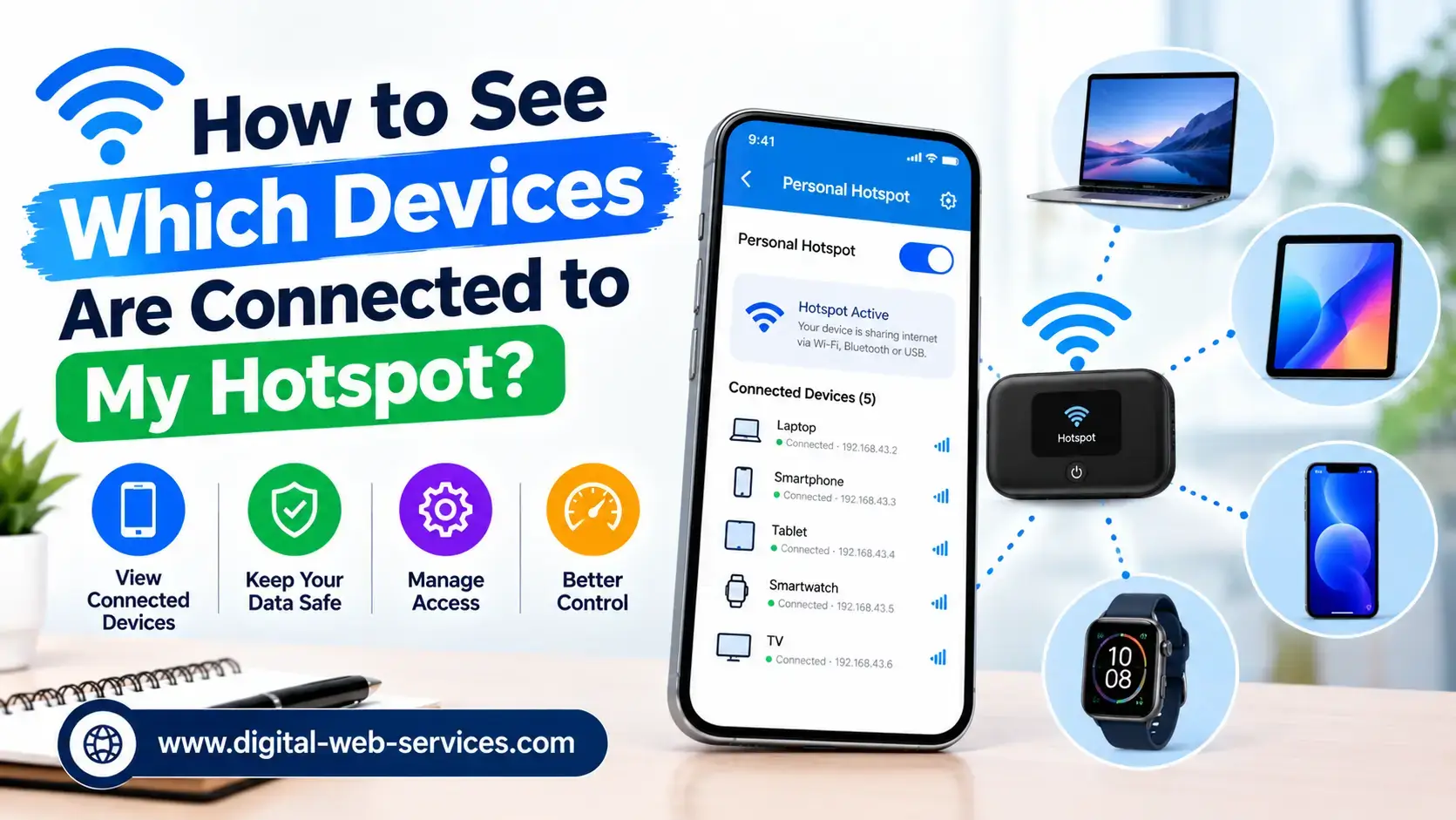
Checking your hotspot users only takes a few taps inside your phone’s network settings.
- Open your phone’s Settings app.
- Tap Personal Hotspot, Mobile Hotspot, or Hotspot & tethering.
- Select Connected devices or Connected users to review active connections.
- Look for unfamiliar device names or suspicious IP addresses.
- If you spot an unrecognized user, update your security credentials right away.
How to Check Connected Devices on an iPhone
Apple approaches hotspot management with simplicity, focusing on total connection counts rather than detailed individual logs.
Method 1: Check Personal Hotspot Settings
- Go to Settings on your iPhone.
- Tap Personal Hotspot (or Cellular > Personal Hotspot).
- Check the active status menu for real-time connection alerts.
Look for the blue pill indicator or Dynamic Island badge at the top of your screen, which signals active data sharing.
Method 2: Use Control Center
- Swipe down from the top-right corner (or swipe up on older models with a Home button).
- Press and hold the Connectivity tile (Wi-Fi and Bluetooth box).
- Look under Personal Hotspot to see the total number of connected clients.
Can You See Device Names on an iPhone Hotspot?
Not always. Apple limits full device-by-device listing on most iOS builds to protect user privacy.
If you only see a numerical connection count, try these quick troubleshooting steps:
- Disconnect your personal devices one by one to see if the count drops.
- Toggle off Allow Others to Join when you aren’t sharing internet.
- Update your hotspot password immediately to boot off all existing users.
How to Check Connected Devices on Android
Android gives you much deeper control, showing exact device names, MAC addresses, and instant block controls.
Method 1: Stock Android & Google Pixel
- Open Settings and tap Network & internet.
- Select Hotspot & tethering > Wi-Fi hotspot.
- Tap Connected devices to view every active connection.
Method 2: Samsung Galaxy Phones
- Go to Settings > Connections.
- Select Mobile Hotspot and Tethering, then tap Mobile Hotspot.
- Scroll down to Connected Devices to see names and data usage.
Checking Other Android Brands (OnePlus, Xiaomi, OPPO, Vivo)
If your menu paths look different, use the search bar inside your Settings app.
Search for terms like “Connected Devices”, “Hotspot Users”, or “Manage Devices”.
Most custom Android skins let you tap directly on any connected phone to block or kick it off.
How to Identify an Unknown Device on Your Hotspot
Before panicking about a random connection, verify whether it actually belongs to you.
1. Audit Your Own Gadgets First
Your laptop, tablet, smartwatch, or a friend’s phone might be auto-reconnecting in the background using saved credentials.
2. Decode Generic Device Names
Names like “Android-Device” or “LAPTOP-89X” usually belong to your own hardware using default system tags.
3. Watch for Randomized MAC Addresses
Modern devices use randomized private MAC addresses for Wi-Fi privacy, which can make your own iPad look like a foreign device.
4. Perform a Simple Process of Elimination
If your hotspot shows 3 connections, turn off Wi-Fi on your laptop. If the counter drops to 2, that laptop was the mystery device.
How to Disconnect or Block Unwanted Hotspot Users
If an unauthorized user is consuming your data, use these three quick options to remove them.
Option 1: Turn Off Your Hotspot
The fastest quick-fix is turning off your hotspot completely. This instantly drops every single active connection.
Option 2: Change Your Hotspot Password
Updating your password is the most permanent fix.
Go to your hotspot settings, create a strong new password, and reconnect only your primary devices.
Option 3: Block Specific Devices (Android Only)
Many Android phones feature a built-in blocklist. Tap on the offending device inside your connected list and select Block or Disconnect.
What to Do If Your Phone Doesn’t Show Connected Devices
If your software doesn’t reveal connection details, try these manual diagnostic tricks:
- Use Settings Search: Search for “Tethering” or “Allowed Devices” to uncover hidden manufacturer sub-menus.
- Run a Computer Terminal Check: Connect your laptop to the hotspot, open Command Prompt or Terminal, and type
arp -ato list local IP addresses. - Update System Software: Ensure your phone is running the latest OS update, as manufacturers often patch network security tools.
Why Is Your Hotspot Eating So Much Data?
An unknown user isn’t always the main culprit behind sudden data drain.
Connected laptops often run heavy background operations the moment they join a mobile network.
- Automatic System Updates: Windows and macOS pull massive update files in the background.
- Cloud Syncing: Google Drive, iCloud, and OneDrive automatically upload heavy photos and videos.
- Background Video Streaming: High-resolution auto-playing videos consume gigabytes in minutes.
How to Secure Your Mobile Hotspot
Protecting your mobile bandwidth takes less than two minutes with these security basics:
- Set a complex password with numbers, symbols, and mixed-case letters.
- Use WPA2-Personal or WPA3-Personal encryption inside your hotspot security settings.
- Disable your hotspot the moment you finish using it to prevent background scanning.
iPhone vs. Android: Hotspot Feature Comparison
| Feature | iPhone (iOS) | Android OS |
|---|---|---|
| View Connection Count | Yes (Control Center & Settings) | Yes (Header & Settings) |
| View Individual Device Names | Limited | Yes (Supported on most models) |
| Block Specific Devices | No (Password change required) | Yes (Direct block button) |
| Set Data Limits | No | Yes (Supported on select builds) |
Also Read: How Can I See Which Devices Are Connected to My Wi-Fi?
Frequently Asked Questions (FAQs)
1. How do I see who is using my iPhone hotspot?
Go to Settings > Personal Hotspot or open Control Center to view active connections. iOS shows the total count of connected devices rather than a detailed list of names.
2. Can I block someone from my hotspot without changing the password?
On Android, yes—you can select the device in your hotspot settings and tap Block. On iPhone, you must change your password to disconnect specific users.
3. Does an unknown device name mean my phone is hacked?
No. Most unknown names are simply randomized network IDs from your own smartwatches, tablets, or laptops.
4. Why doesn’t my phone show device names?
Some phone software only tracks the raw number of connections to save processing power and enhance client privacy.
5. How can I stop laptops from consuming all my hotspot data?
Enable “Low Data Mode” on iOS or toggle “Metered Connection” inside your laptop’s Wi-Fi settings to pause automatic updates.
Final Thoughts
Monitoring your hotspot connections is essential for saving battery, protecting bandwidth, and keeping mobile data costs down.
Check your settings regularly, use strong WPA2/WPA3 passwords, and update your credentials whenever your connection slows down!

Digital Web Services (DWS) is a leading IT company specializing in Software Development, Web Application Development, Website Designing, and Digital Marketing. Here are providing all kinds of services and solutions for the digital transformation of any business and website.