Quick Insights
- ChatGPT can help you create PowerPoint presentations by turning ideas, notes, documents, or outlines into clear slide content.
- You can use ChatGPT to write slide titles, bullet points, speaker notes, design suggestions, summaries, and presentation scripts.
- With the new ChatGPT PowerPoint integration, users can create and edit slides directly inside PowerPoint while keeping the presentation editable. The integration is currently described as a beta rollout, so availability may vary by account and region.
Creating a PowerPoint presentation can take a lot of time, especially when you need to organize ideas, write slide content, choose the right flow, and make the message easy to understand. This is where ChatGPT can help. With the right prompts, ChatGPT can turn rough notes into a professional presentation structure within minutes.
Many people search for how to create PPT with ChatGPT because they do not want a blank-slide struggle. They want a simple workflow that helps them plan, write, improve, and polish their slides. ChatGPT can help with all these steps, whether you are making a business presentation, school project, training deck, sales pitch, webinar slides, or investor presentation.
ChatGPT is useful because it works like a presentation assistant. You can ask it to create an outline, write slide-by-slide content, simplify complex ideas, suggest visuals, improve storytelling, and prepare speaker notes. OpenAI also describes ChatGPT as a tool that can write, brainstorm, edit, summarize, analyze files, and help users work with ideas more productively.
What Is ChatGPT for PowerPoint?
ChatGPT for PowerPoint means using ChatGPT to create, edit, improve, or summarize PowerPoint presentations. You can use it in two main ways.
The first way is to use ChatGPT separately. You ask ChatGPT to generate slide content, then copy that content into Microsoft PowerPoint, Google Slides, Canva, or another presentation tool.
The second way is to use a direct PowerPoint integration or add-in when available. The recent ChatGPT PowerPoint feature described in public reports allows users to create and edit presentations inside PowerPoint using simple prompts. It can help build slides from scratch, rewrite existing content, turn notes into presentation-ready slides, summarize long presentations, and improve overall flow while keeping slides editable.
Why Use ChatGPT to Create PowerPoint Presentations?
ChatGPT saves time by helping you move from idea to structure faster. Instead of thinking about every slide from zero, you can give ChatGPT your topic, audience, goal, and key points. It can then create a logical slide order with clear headings and easy-to-read content.
It also improves clarity. Many presentations fail because they include too much text or jump from one idea to another without a proper flow. ChatGPT can simplify long paragraphs, remove repetition, and convert complex information into short bullet points.
Another benefit is better storytelling. A strong PowerPoint presentation is not just a collection of slides. It needs a clear beginning, middle, and end. ChatGPT can suggest an opening hook, problem-solution structure, supporting data points, examples, and a strong closing slide.
Step-by-Step Guide: How to Create PowerPoint Presentations Using ChatGPT
Step 1: Define the Purpose of Your Presentation
Before asking ChatGPT to create slides, be clear about the purpose. A presentation for executives is different from a classroom presentation. A sales pitch is different from a training deck.
You can tell ChatGPT:
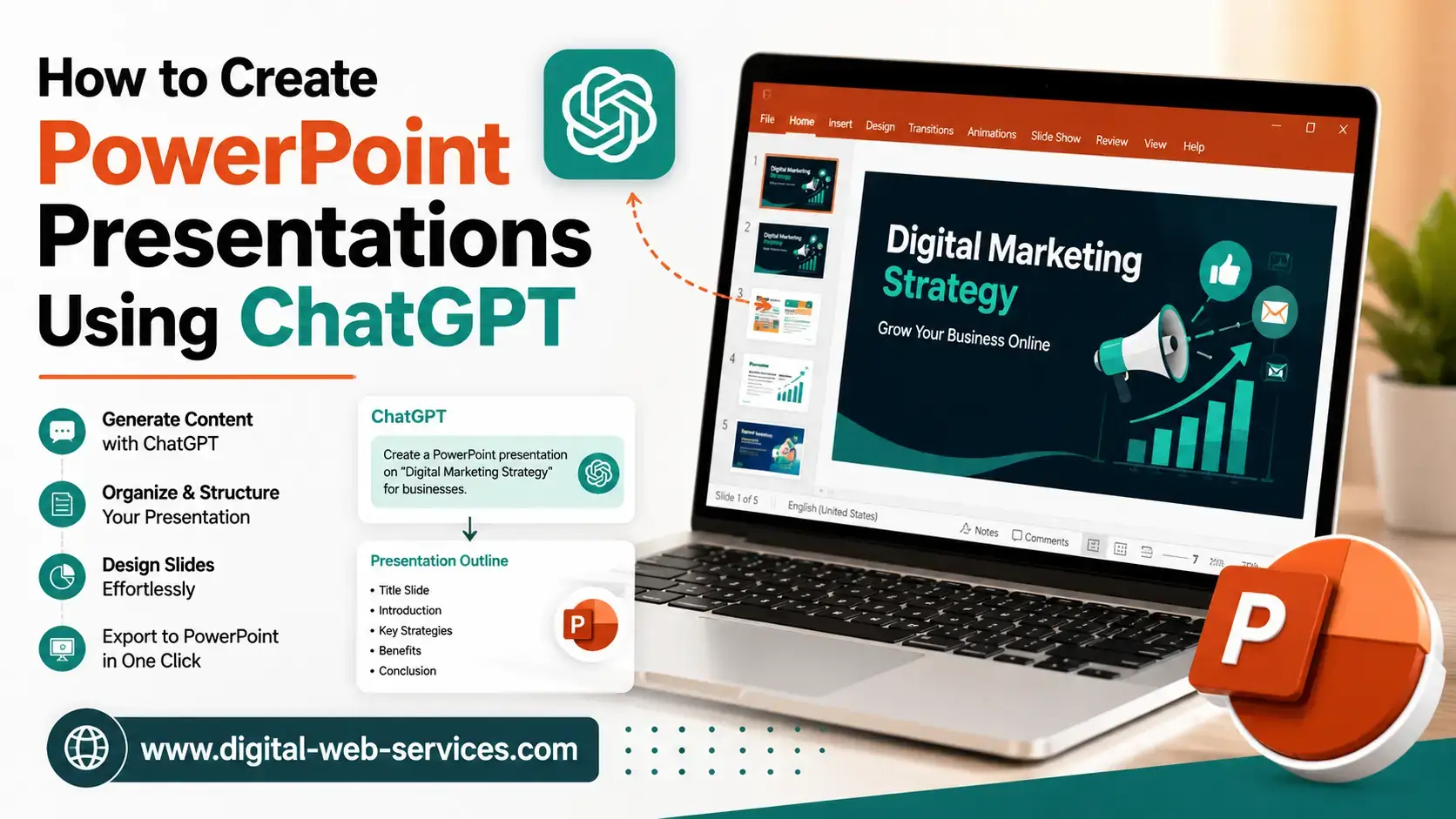
“Create a PowerPoint presentation on digital marketing strategy for small businesses. The audience is business owners. The goal is to explain why paid ads, SEO, and social media should work together. Keep the language simple and professional.”
This helps ChatGPT understand the topic, audience, tone, and goal.
Step 2: Ask ChatGPT to Create a Presentation Outline
Start with an outline before writing full slide content. This keeps the presentation organized and prevents unnecessary slides.
Example prompt:
“Create a 10-slide PowerPoint outline on the topic ‘How AI Can Improve Business Productivity.’ Include slide titles, key points, and the purpose of each slide.”
ChatGPT may create slides such as introduction, problem, solution, benefits, workflow, tools, examples, challenges, best practices, and conclusion. You can then review the outline and ask for changes.
Step 3: Generate Slide-by-Slide Content
Once the outline is ready, ask ChatGPT to write content for each slide. Keep the content short because PowerPoint slides should not look like blog posts.
Example prompt:
“Now write slide-by-slide content for this outline. Each slide should have one title, 3–5 short bullet points, and optional speaker notes.”
This prompt helps you get clean and presentation-ready content. You can copy the titles and bullet points into PowerPoint and use the speaker notes for your delivery.
Step 4: Ask ChatGPT to Suggest Visuals
A good PowerPoint presentation needs visuals, not only text. ChatGPT can suggest charts, icons, images, diagrams, timelines, comparison tables, and process flows.
Example prompt:
“For each slide, suggest one suitable visual idea. Include chart type, icon idea, or image concept where relevant.”
This is useful for making the presentation more engaging. For example, ChatGPT may suggest a funnel diagram for a marketing strategy slide or a timeline for a project roadmap slide.
Step 5: Create Speaker Notes
Speaker notes help you explain slides confidently. They are especially useful for business presentations, webinars, lectures, and training sessions.
Example prompt:
“Write natural speaker notes for each slide in a professional tone. Keep each note under 100 words and make it easy to speak.”
ChatGPT can turn short bullet points into a smooth speaking script. You should still review the notes and add your own examples or experience.
Step 6: Improve the Presentation Flow
After creating the first draft, ask ChatGPT to review the structure. This step is important because AI-generated slides may need better flow or stronger logic.
Example prompt:
“Review this presentation flow. Identify weak sections, repeated points, missing slides, and ways to make the story stronger.”
ChatGPT can suggest where to add a problem slide, case study, transition slide, or final call-to-action. This makes the presentation more useful for the audience.
Step 7: Edit for Simple Language
PowerPoint content should be easy to scan. Avoid long sentences, heavy jargon, and crowded slides.
Example prompt:
“Simplify this slide content for a general audience. Use clear language, short bullets, and no technical jargon.”
This is helpful when your presentation is about complex topics such as AI, finance, healthcare, software, or business strategy.
Step 8: Add a Strong Opening and Closing
The first and last slides matter a lot. The opening should catch attention. The closing should leave the audience with a clear message.
Example prompt for opening:
“Create 3 strong opening slide options for this presentation. Make them clear, engaging, and suitable for business users.”
Example prompt for closing:
“Write a powerful closing slide with key takeaways and a call-to-action.”
How to Use ChatGPT Directly Inside PowerPoint
If the ChatGPT PowerPoint add-in is available for your account, the basic process is simple.
Open Microsoft PowerPoint on your PC or Mac. Go to the Add-ins section and search for ChatGPT. Install the add-in, sign in with your OpenAI account, and open the ChatGPT sidebar. After setup, you can use prompts to create new slides, rewrite existing slides, summarize a long deck, improve weak sections, or turn notes into presentation-ready content.
Because this feature is in beta, the exact availability and interface may change. OpenAI’s public ChatGPT pages also note that plan access and features can vary across Free, Go, Plus, Pro, Business, and Enterprise users.
Best ChatGPT Prompts for PowerPoint Presentations
Here are useful prompts you can copy and customize.
“Create a 12-slide PowerPoint presentation on [topic] for [audience]. Include slide titles, bullet points, speaker notes, and visual suggestions.”
“Turn these notes into a professional PowerPoint presentation. Keep each slide simple and easy to understand.”
“Rewrite this slide content to make it more executive-friendly, concise, and persuasive.”
“Suggest a better storytelling structure for this presentation.”
“Create a sales pitch deck for [product/service]. Include problem, solution, benefits, proof, pricing, and call-to-action.”
“Summarize this long presentation into 5 key slides.”
“Make this presentation more engaging by adding examples, questions, and visual ideas.”
Real Workflow Example
Suppose you need to create a presentation on “Benefits of AI in Education.”
You can start with this prompt:
“Create a 10-slide PowerPoint presentation on Benefits of AI in Education. The audience is school administrators and teachers. Keep the tone simple, practical, and trustworthy. Include slide titles, 4 bullet points per slide, speaker notes, and visual suggestions.”
ChatGPT may create slides covering what AI is, current education challenges, personalized learning, teacher productivity, student support, assessment, risks, responsible use, implementation steps, and conclusion.
Then you can improve it with a second prompt:
“Add real-world examples for each slide and make the presentation more practical for schools.”
Finally, polish it with:
“Shorten the bullet points and make the speaker notes sound more natural.”
This workflow gives you a better final result than asking ChatGPT to create everything in one prompt.
Tips to Make AI-Generated Presentations Better
Always check the facts. ChatGPT can help you write and organize content, but you should verify statistics, dates, names, pricing, legal claims, medical claims, and financial information before presenting.
Add your own experience. A presentation becomes stronger when it includes real examples, case studies, internal data, customer stories, or practical lessons.
Keep slides clean. Use one main idea per slide. Avoid placing too much text on one slide. Use visuals where they help explain the point.
Match the tone to the audience. Executives usually prefer short insights and decisions. Students may need explanations. Clients may need benefits, proof, and next steps.
Common Mistakes to Avoid
Do not copy AI output without editing. ChatGPT gives you a good first draft, but the final presentation should sound like you.
Do not overload slides with text. A PowerPoint presentation is not a document. Use short points and explain details verbally.
Do not use generic prompts. The more specific your prompt, the better the output. Always mention topic, audience, goal, tone, number of slides, and format.
Do not ignore design. ChatGPT can suggest layout ideas, but you still need proper fonts, spacing, images, colors, and slide balance.
FAQs to Create PowerPoint Presentations Using ChatGPT
Q: Can ChatGPT create a PowerPoint presentation?
Yes, ChatGPT can help create a PowerPoint presentation by generating slide titles, bullet points, speaker notes, visual ideas, and presentation structure. You can copy the content into PowerPoint or use an available PowerPoint integration.
Q: How do I create PPT with ChatGPT?
To create a PPT with ChatGPT, enter your topic, audience, goal, number of slides, and preferred tone. Ask ChatGPT to create a slide-by-slide outline, then request bullet points, speaker notes, and visual suggestions.
Q: Can ChatGPT edit existing PowerPoint slides?
Yes, ChatGPT can help rewrite, simplify, summarize, and improve existing slide content. With supported PowerPoint integration, users may be able to edit slides directly inside PowerPoint.
Q: What is the best prompt for ChatGPT PowerPoint presentation?
A good prompt is: “Create a [number]-slide PowerPoint presentation on [topic] for [audience]. Include slide titles, short bullet points, speaker notes, and visual suggestions. Keep the tone [simple/professional/persuasive].”
Q: Is ChatGPT an AI PowerPoint presentation maker?
ChatGPT can work like an AI PowerPoint presentation maker because it helps generate structure, content, notes, and design ideas. However, you should still review, edit, and format the final deck.
Q: Can ChatGPT summarize a PowerPoint presentation?
Yes, ChatGPT can summarize presentation content if you provide the text or upload the file in a supported ChatGPT plan. It can extract key points, create a shorter version, or turn the summary into new slides.
Conclusion
ChatGPT makes PowerPoint creation faster, easier, and more organized. It can help you plan the structure, write slide content, create speaker notes, suggest visuals, improve storytelling, and simplify complex information.
The best way to use ChatGPT for PowerPoint is not to depend on one prompt. Start with an outline, generate slide content, improve the flow, add visuals, create speaker notes, and then review everything manually. This gives you a presentation that is clear, useful, and professional.
When used correctly, ChatGPT is not just an AI writing tool. It becomes a smart presentation assistant that helps you create better slides with less stress.

Maria Jain is a Senior Content Strategist and Tech Editor at Digital Web Services, with over 6+ years of experience covering digital marketing, website development, and search engine optimization. She specializes in WordPress site architecture, AI technologies, Web Hosting, topical authority models, and hands-on SaaS & affiliate tool reviews. Maria combines data-driven SEO practices with deep web design and technical insights to publish transparent guides, tool comparisons, and strategic tutorials for digital growth.