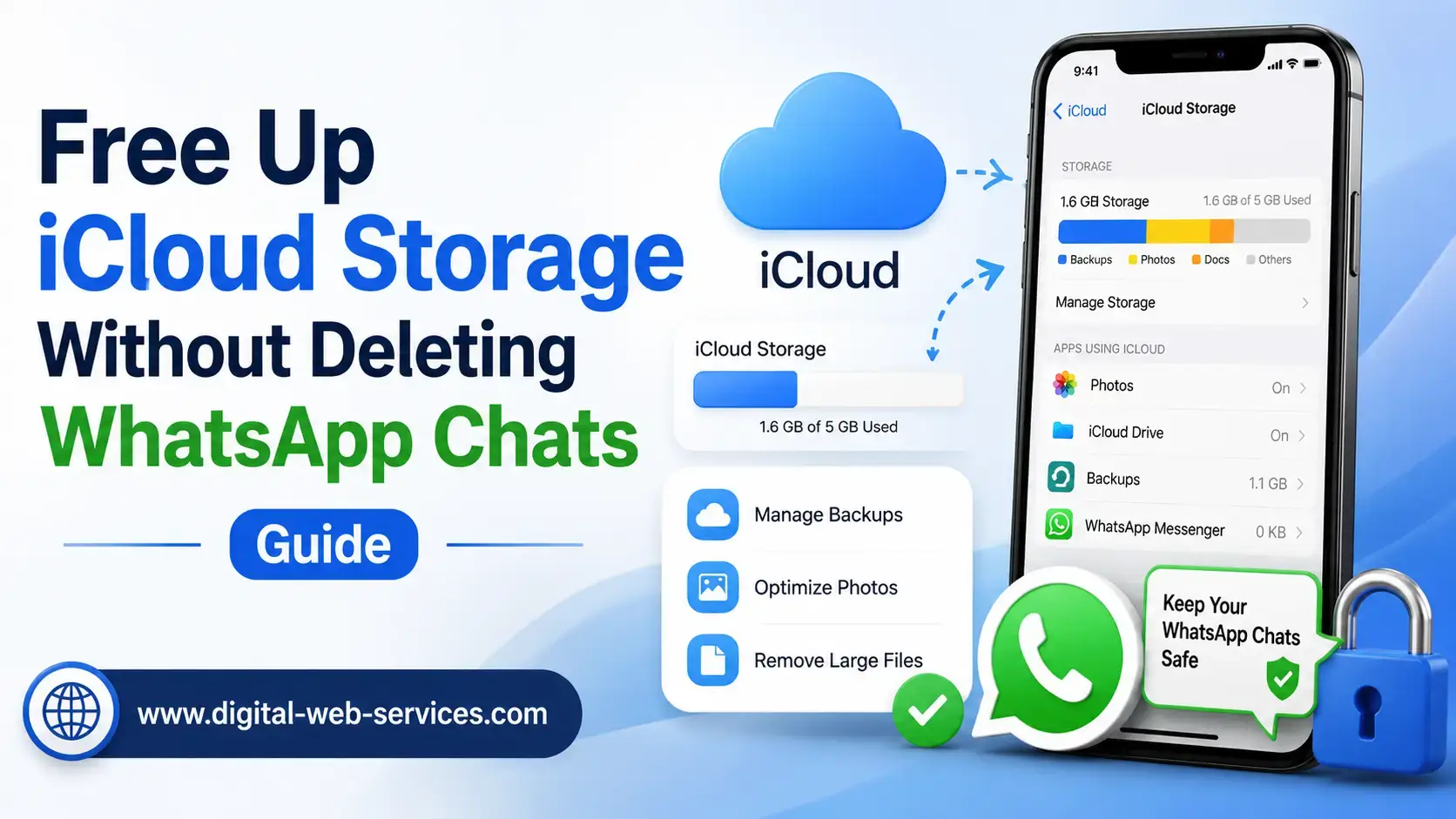
Apple gives every iCloud user 5 GB of free storage, but that space can disappear surprisingly fast once WhatsApp backups, photos, videos, and documents start piling up. The good news is that you do not need to delete your WhatsApp conversations to reclaim it.
You can stop future WhatsApp backups, remove the existing cloud copy, or clean unnecessary media while keeping your important chats available on your iPhone.
Apple’s free 5 GB of iCloud storage can fill up quickly when WhatsApp backups include years of photos, videos and documents. Fortunately, you can free up that space without deleting the chats stored on your iPhone.
WhatsApp is also reportedly testing its own end-to-end encrypted cloud backup solution, which could eventually reduce users’ dependence on iCloud and Google Drive backups. However, the feature is still under development, so iPhone users currently need to manage existing iCloud backups and large WhatsApp media files manually.
In this guide, you will learn how to stop future WhatsApp backups, remove the existing iCloud copy, clean heavy files and transfer your chats to a new iPhone safely.
Why Is WhatsApp Consuming All Your iCloud Storage?
WhatsApp conversations are mostly text, and text messages take up very little space. The real storage thieves are the files hiding inside those conversations.
Your WhatsApp iCloud backup may include:
- Photos and videos shared in personal and group chats
- Voice notes and audio files
- PDFs, presentations, spreadsheets, and other documents
- Stickers, GIFs, and forwarded media
- Years of chat history
- Videos included through the “Include Videos” backup setting
Automatic daily or weekly backups can keep replacing your previous WhatsApp backup with a newer and often larger version. A few active family groups, office chats, or meme-heavy friend circles can quietly turn a small backup into several gigabytes.
It is also important to understand the difference between iCloud storage and iPhone storage. Cleaning files inside WhatsApp primarily frees space on your iPhone. It can also reduce the size of future WhatsApp backups, but it will not always shrink an existing iCloud backup immediately.
Apple confirms that the free iCloud plan includes 5 GB shared across backups, iCloud Photos, iCloud Drive, and other services. Once it becomes full, new backups and syncing may stop working.
How to Clear iCloud Space Without Losing WhatsApp Data: 3 Proven Methods
Before changing anything, open WhatsApp and confirm that your conversations are still visible on your iPhone. Do not uninstall WhatsApp or reset your phone while your only cloud backup is being removed.
Method 1: Turn Off WhatsApp iCloud Backup Safely
This method prevents WhatsApp from continuing to use iCloud. It is useful when you want to keep all chats stored locally on your current iPhone but no longer want WhatsApp creating cloud backups.
Follow these steps:
- Open the Settings app on your iPhone.
- Tap your name at the top.
- Select iCloud.
- Tap See All next to Saved to iCloud.
- Find and select WhatsApp.
- Turn the WhatsApp iCloud option Off.
- Confirm the change if your iPhone displays a confirmation message.
The navigation path is:
iPhone Settings > [Your Name] > iCloud > See All > WhatsApp > Off
On some older iOS versions, the section may be labelled Apps Using iCloud, Show All, or something similar.
Apple states that when iCloud is turned off for an app, that app stops connecting to iCloud and its data remains available only on the device.
Will Turning Off WhatsApp in iCloud Delete My Chats?
No. Turning off WhatsApp’s access to iCloud does not delete the chats currently stored inside WhatsApp on your iPhone.
It only stops WhatsApp from using iCloud for future cloud storage and backups. Your messages, groups, photos, and documents will remain on your phone unless you manually delete them, uninstall WhatsApp, erase the iPhone, or experience a device failure.
However, this method may not immediately free the space already occupied by an existing WhatsApp backup. To reclaim that space, use Method 2.
Also Disable Automatic Backup Inside WhatsApp
To prevent WhatsApp from repeatedly requesting iCloud access, you can also turn off its internal automatic backup setting:
- Open WhatsApp.
- Tap Settings or your profile icon.
- Select Chats.
- Tap Chat Backup.
- Select Auto Backup.
- Choose Off.
The path is:
WhatsApp > Settings > Chats > Chat Backup > Auto Backup > Off
WhatsApp provides daily, weekly, monthly, and manual backup options from this section.
Method 2: Delete the Existing WhatsApp Backup from iCloud
Turning off backups prevents future storage use, but the old WhatsApp backup may still be occupying several gigabytes in iCloud.
To remove it:
- Open the Settings app.
- Tap your name.
- Select iCloud.
- Tap Storage or Manage Account Storage.
- Find and select WhatsApp Messenger.
- Tap Delete Data from iCloud or Delete Data.
- Confirm the deletion.
The navigation path is:
Settings > [Your Name] > iCloud > Manage Account Storage > WhatsApp Messenger > Delete Data
The wording may vary slightly depending on your iOS version. You might see Storage instead of Manage Account Storage, or Delete from iCloud instead of Delete Data.
What Gets Deleted?
This removes the WhatsApp backup stored in iCloud. It does not automatically erase the chats currently visible inside WhatsApp on your iPhone.
WhatsApp’s own troubleshooting guidance states that deleting an iCloud backup does not delete chats from the phone as long as WhatsApp itself is not deleted and the local data remains intact.
Important Warning Before Deleting the Backup
Once the iCloud copy is deleted, you will not be able to restore from that backup if:
- Your iPhone is lost or damaged
- You uninstall WhatsApp
- You factory-reset the device
- WhatsApp data becomes corrupted
- You move to another phone without transferring the chats first
Think of your iPhone as the original notebook and iCloud as the photocopy. Deleting the photocopy does not destroy the notebook, but you no longer have a spare if the notebook disappears.
Before removing the backup, consider transferring important documents to the Files app, exporting critical conversations, creating a computer backup of your iPhone, or using WhatsApp’s direct iPhone-to-iPhone transfer feature.
Method 3: Clean Heavy Files Directly Inside WhatsApp
If you still want to use WhatsApp backups but need them to be smaller, clean unnecessary media from inside WhatsApp.
You do not need to delete entire chats. WhatsApp includes a storage management tool that lets you review large videos, forwarded files, documents, and media from individual conversations.
Follow these steps:
- Open WhatsApp.
- Tap Settings or your profile icon.
- Select Storage and Data.
- Tap Manage Storage.
- Open Larger than 5 MB.
- Review the files displayed.
- Select the videos, photos, documents, or audio files you no longer need.
- Tap the trash icon and confirm.
The navigation path is:
WhatsApp > Settings > Storage and Data > Manage Storage > Larger than 5 MB
WhatsApp officially recommends using the Manage Storage section to review and remove unnecessary content from specific chats.
What Should You Delete First?
Start with the files that deliver the biggest storage win with the least emotional damage:
- Long videos you have already watched
- Duplicate festival greetings
- Frequently forwarded clips
- Old event videos
- Large PDFs available elsewhere
- Product catalogues and work documents you can download again
- Photos already saved in the Photos app
- Media from inactive groups
- Voice notes that are no longer useful
A single five-minute HD video can consume more space than thousands of text messages. Delete ten old videos and your storage situation may suddenly look far less dramatic.
Save Important Files Before Removing Them
Deleting an item through WhatsApp’s Manage Storage tool removes that item from WhatsApp. The conversation itself remains, but the selected photo, video, document, or audio file may no longer be available inside the chat.
Before deleting something important:
- Open the file.
- Tap the Share icon.
- Save it to Photos, Files, or another secure location.
- Return to Manage Storage and remove the WhatsApp copy.
How This Helps iCloud Storage
Cleaning WhatsApp media reduces the app’s local storage usage and can make future WhatsApp backups smaller.
However, an existing backup may continue occupying its current amount of iCloud space until WhatsApp creates a new backup or you delete the old cloud backup manually.
For the fastest result:
- Clean large WhatsApp media.
- Delete the existing WhatsApp backup from iCloud.
- Create a fresh, smaller backup only if you still want cloud protection.
How to Transfer WhatsApp to a New iPhone Without iCloud Backup
Deleting your WhatsApp iCloud backup does not mean you are trapped on your current phone forever.
WhatsApp offers a native Transfer Chats to iPhone feature that transfers chat history directly between two iPhones using a QR code. The transfer happens locally, so an iCloud WhatsApp backup is not required.
Before Starting the Transfer
Make sure:
- Both iPhones have WhatsApp installed or updated
- Both devices are connected to Wi-Fi
- Both phones are near each other
- You are using the same phone number
- WhatsApp has the required local network, camera, and location permissions
- Both devices have enough battery
- You have not erased the old iPhone
Steps to Transfer WhatsApp Chats Using the QR Code
On your old iPhone:
- Open WhatsApp.
- Go to Settings.
- Select Chats.
- Tap Transfer Chats to iPhone.
- Tap Start.
- Allow the requested permissions.
The path is:
WhatsApp > Settings > Chats > Transfer Chats to iPhone > Start
On your new iPhone:
- Install and open WhatsApp.
- Verify the same phone number used on the old iPhone.
- Select the option to transfer chat history from the old iPhone.
- A QR code should appear on the new phone.
- Use the old iPhone to scan that QR code.
- Keep both phones unlocked, connected, and close together until the transfer finishes.
WhatsApp states that transferred data remains on the old iPhone until you delete WhatsApp or reset the device. WhatsApp also cannot view the data being transferred.
If the QR code does not appear or the transfer fails, check that both phones are connected to the same Wi-Fi network, required permissions are enabled, and both devices remain close together.
Do Not Erase the Old iPhone Too Early
After the transfer finishes:
- Open several old conversations on the new iPhone.
- Check photos, voice notes, videos, and documents.
- Confirm that group chats are visible.
- Verify that recent messages have transferred.
- Only then erase, sell, or give away the old iPhone.
That final check takes a few minutes and can prevent the digital equivalent of throwing away a suitcase before confirming your clothes reached the hotel.
Summary: The Smart Way to Manage iOS Storage
The smartest approach depends on what you need.
If you want to stop WhatsApp from consuming more iCloud storage, turn off its iCloud access and disable Auto Backup. If you need space immediately, delete the existing WhatsApp backup after confirming that all chats are still available on your iPhone. If you want to continue using cloud backups, clean large media first and then create a smaller backup.
Most importantly, do not uninstall WhatsApp, erase your old phone, or reset the device after deleting the cloud backup unless you have already transferred or safely backed up the chats you want to keep.

Maria Jain is a Senior Content Strategist and Tech Editor at Digital Web Services, with over 6+ years of experience covering digital marketing, website development, and search engine optimization. She specializes in WordPress site architecture, AI technologies, Web Hosting, topical authority models, and hands-on SaaS & affiliate tool reviews. Maria combines data-driven SEO practices with deep web design and technical insights to publish transparent guides, tool comparisons, and strategic tutorials for digital growth.