Quick Answer:
- Open your PDF in Adobe Acrobat Pro, go to All Tools → Compress a PDF, and save a smaller file.
- Use Advanced Optimization for granular control over images, fonts, and transparency.
- Smaller PDFs are faster to share, store, and email without losing quality.
Introduction
PDF files are widely used for sharing documents because they preserve formatting across devices. However, large PDFs can be slow to upload, share, or store. If you are searching for “how to reduce PDF size in Adobe Acrobat Pro” or “compress PDF without losing quality”, this guide provides easy, step-by-step methods that anyone can follow.
By optimizing PDFs in Adobe Acrobat Pro, you can make files lighter, faster to share, and easier to store, while retaining professional-quality formatting.
Why You Should Reduce PDF Size
Reducing PDF size has multiple benefits:
- Faster sharing via email or cloud services.
- Lower storage usage on devices or servers.
- Improved compatibility with older systems or online submission portals.
Many users struggle with bulky PDFs containing high-resolution images, embedded fonts, or scanned documents. Adobe Acrobat Pro offers built-in tools to address all these challenges.
Methods to Reduce PDF Size in Adobe Acrobat Pro
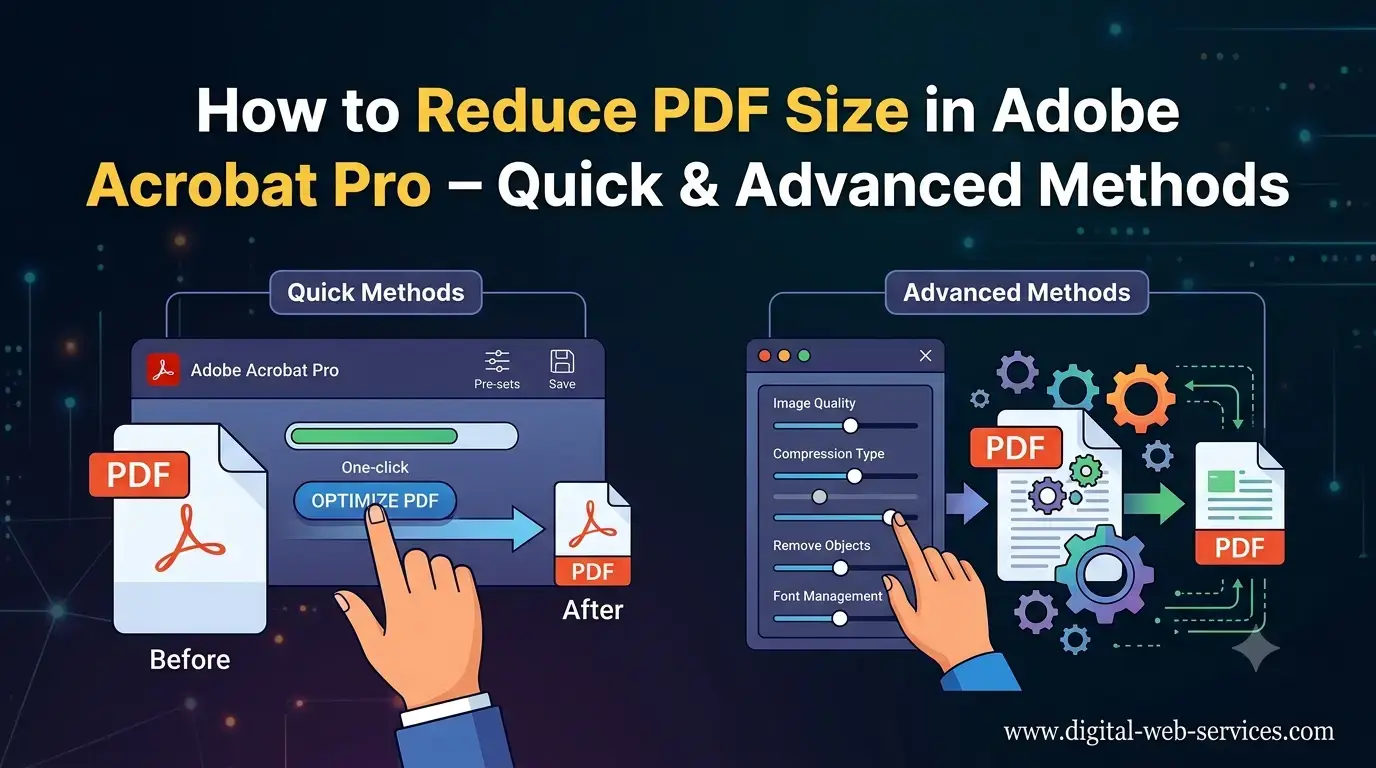
Adobe Acrobat Pro provides two main ways to compress PDFs: Quick Compression and Advanced Optimization.
Option 1: Quick Compression Method
This is the fastest way to reduce PDF file size without manual adjustments.
Steps:
- Open your PDF in Adobe Acrobat Pro.
- Click All Tools on the top toolbar.
- Select Compress a PDF.
- Choose Single file or Multiple files.
- Click Save.
The software automatically reduces file size of PDF in Acrobat while preserving overall quality. This method is ideal for everyday users who need a quick, efficient solution.
SEO keywords naturally included: reduce PDF size, compress PDF, Adobe Acrobat Pro, PDF optimization.
Option 2: Advanced Optimization Method
For professional users or those needing more control over file elements, Advanced Optimization offers detailed customization.
Steps:
- Open your PDF and navigate to All Tools → Compress a PDF.
- Select Advanced Optimization.
- Choose the Make Compatible With dropdown:
- Retain the latest Acrobat version or
- Make compatible with older versions.
- Adjust the following settings:
- Images: Compress, downsample, or reduce resolution.
- Fonts: Embed only necessary fonts.
- Transparency: Flatten or simplify.
- Click OK and save your optimized PDF.
This method ensures maximum file size reduction while giving you control over document quality and compatibility.
Tips for Effective PDF Compression
- Use standard fonts whenever possible to reduce embedded font size.
- Optimize images before inserting them into the PDF.
- Remove unnecessary objects like annotations, forms, or metadata.
- Save a backup before compression in case quality adjustments need revision.
By following these practices, you can maintain high-quality PDFs that are easy to share and store.
Additional Methods: Online PDF Compressor
If you don’t have Adobe Acrobat Pro installed, you can use the Adobe Acrobat Online PDF Compressor.
Steps:
- Visit Adobe Acrobat Online PDF Compressor.
- Upload your PDF.
- Click Compress.
- Download the reduced PDF.
This is perfect for quick browser-based compression, especially when on the go.
Real-Life Example: Compressing a 50 MB PDF
Scenario: You have a 50 MB PDF containing scanned images and charts.
- Using Quick Compression, the file reduces to 15 MB.
- Using Advanced Optimization, you can selectively downsample images, subset fonts, and flatten transparency to get it as low as 10 MB without losing clarity.
This shows how control over elements can significantly impact file size and usability.
Frequently Asked Questions (FAQs)
Q1: How do I compress a PDF without losing quality in Adobe Acrobat Pro?
A1: Use Advanced Optimization and adjust image resolution, font embedding, and transparency settings. Quick Compression works for most files while preserving quality.
Q2: Can I reduce PDF size for multiple files at once?
A2: Yes. In Compress a PDF, select Multiple Files and Adobe Acrobat Pro will compress them together efficiently.
Q3: What is the difference between Quick Compression and Advanced Optimization?
A3: Quick Compression is fast and automatic, while Advanced Optimization allows granular control over images, fonts, and transparency for professional results.
Q4: Does compressing a PDF affect images?
A4: It can slightly reduce image resolution, but Advanced Optimization allows precise adjustments to balance size vs. quality.
Q5: Can I compress a PDF without Adobe Acrobat Pro?
A5: Yes, Adobe offers a free online PDF compressor that works directly in your browser.
Conclusion
Reducing PDF size in Adobe Acrobat Pro is simple and essential for better document management. By choosing either the Quick Compression or Advanced Optimization method, you can:
- Make PDFs smaller without losing readability.
- Improve sharing and storage efficiency.
- Maintain professional quality for work or personal use.

Maria Jain is a Senior Content Strategist and Tech Editor at Digital Web Services, with over 6+ years of experience covering digital marketing, website development, and search engine optimization. She specializes in WordPress site architecture, AI technologies, Web Hosting, topical authority models, and hands-on SaaS & affiliate tool reviews. Maria combines data-driven SEO practices with deep web design and technical insights to publish transparent guides, tool comparisons, and strategic tutorials for digital growth.