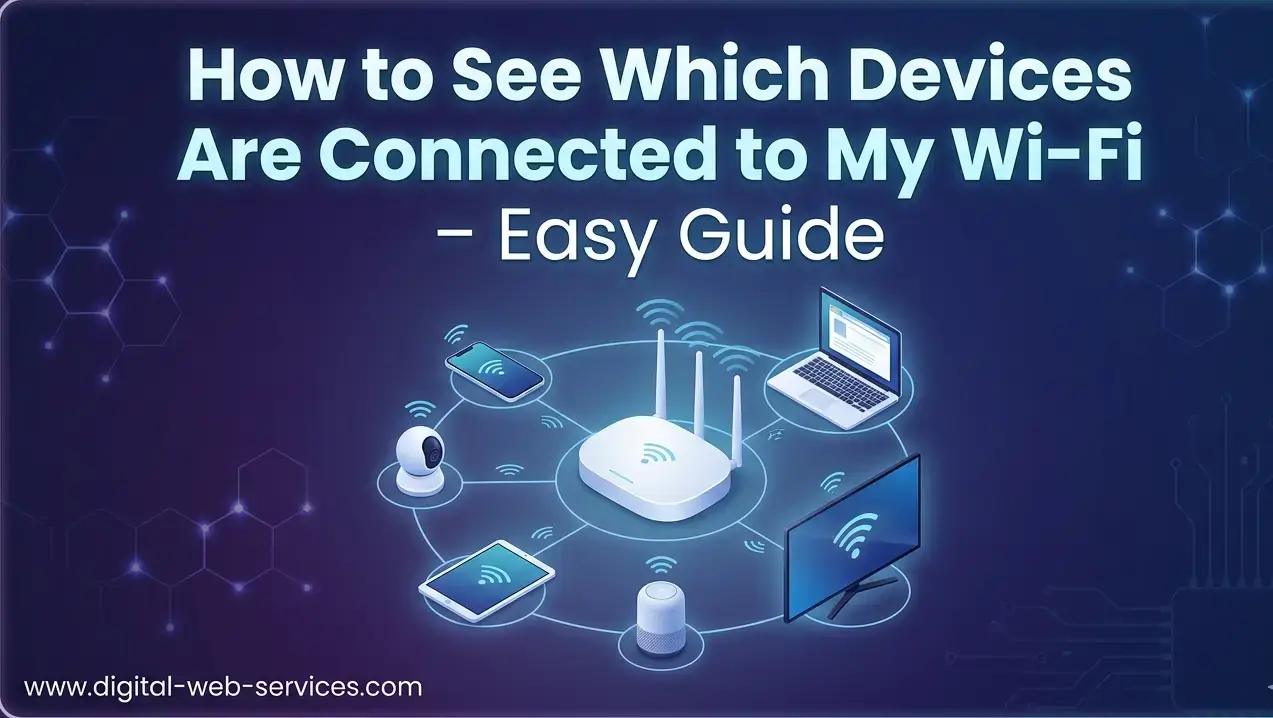
Wondering how to see which devices are connected to your Wi-Fi? It’s easier than you think. You can log into your router’s admin panel using its IP address (often 192.168.1.1 or 192.168.0.1) and check the Connected Devices or DHCP Client List. This method shows all smartphones, laptops, smart TVs, and IoT devices on your network. If you prefer a mobile-friendly approach, apps like Fing or your ISP’s official Wi-Fi app let you view connected devices in real-time. Checking your network regularly helps identify unknown devices and ensures your Wi-Fi stays secure.
What Methods Can I Use to Check Connected Devices on My Wi-Fi?
1. Router Admin Panel
- Locate your router’s IP address and login credentials (usually on a sticker).
- Enter the IP in a browser and log in.
- Navigate to Connected Devices, Attached Devices, or Device List to see all active connections.
2. ISP or Router Apps
- Apps like Google Wifi, Netgear Nighthawk, or your ISP’s app provide real-time visibility of connected devices and data usage.
3. Network Scanner Apps
- Tools like Fing scan your network to show all connected devices with their names, IP, and MAC addresses.
4. Command Prompt (Windows/Mac)
- On Windows, open Command Prompt and type
arp -a. - On Mac, open Terminal and type the same command.
- This shows a list of devices currently active on your Wi-Fi.
How Can I Identify Unknown Devices on My Network?
Look at the device names, IP addresses, and MAC addresses listed in your router or app. Unknown devices may be unauthorized users. Compare them with your own devices like smartphones, laptops, smart TVs, or smart home gadgets.
What Should I Do If I Find Unauthorized Devices?
- Change your Wi-Fi password immediately.
- Reconnect your devices with the new password.
- Enable network encryption (WPA3 or WPA2) in your router settings.
- Optionally, block unknown MAC addresses from the router admin panel.
| Also Read: How to Check Which Devices Are Logged Into Your Netflix Account
FAQs
Q1: Can I see connected devices on Wi-Fi without logging into the router?
Yes, apps like Fing or your ISP’s mobile app can display all devices without accessing the router’s admin panel.
Q2: How often should I check which devices are connected?
It’s recommended to check monthly or if you notice unusual internet activity to detect unauthorized access early.
Q3: Can I see the exact device type connected to Wi-Fi?
Yes, router panels and scanning apps often show device type (smartphone, laptop, TV) along with IP and MAC addresses.
Q4: Is it safe to disconnect unknown devices?
Absolutely. Changing your Wi-Fi password or using MAC address filtering ensures only authorized devices can connect.

Maria Jain is a Senior Content Strategist and Tech Editor at Digital Web Services, with over 6+ years of experience covering digital marketing, website development, and search engine optimization. She specializes in WordPress site architecture, AI technologies, Web Hosting, topical authority models, and hands-on SaaS & affiliate tool reviews. Maria combines data-driven SEO practices with deep web design and technical insights to publish transparent guides, tool comparisons, and strategic tutorials for digital growth.