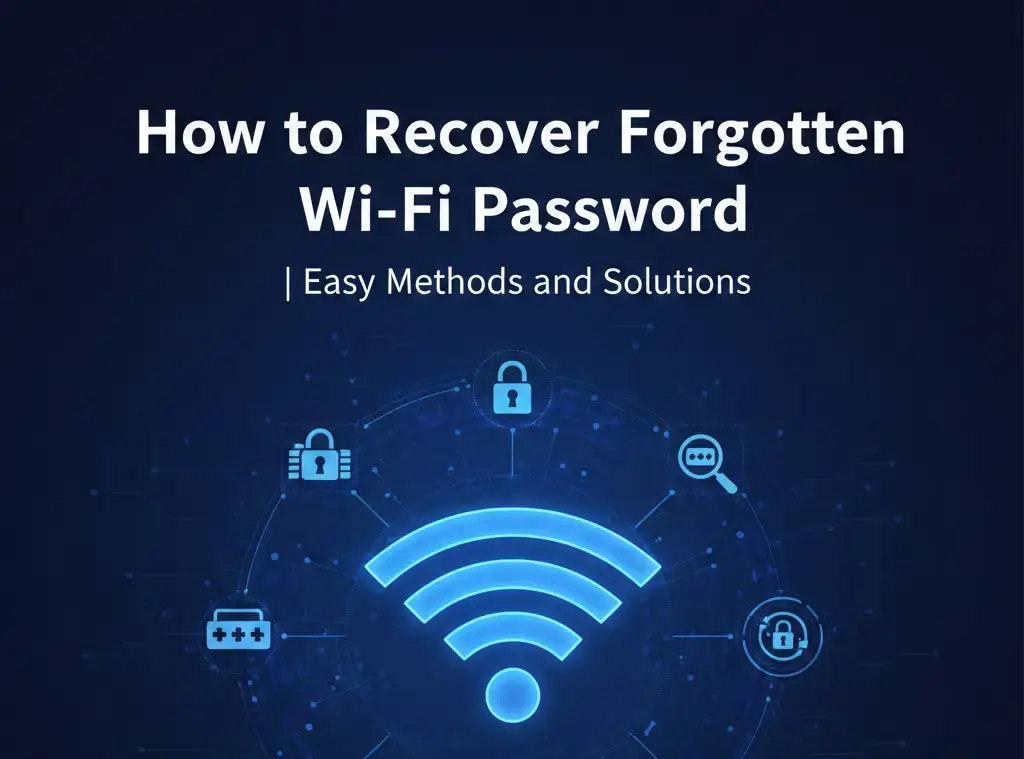
It can be frustrating when you forget your Wi-Fi password, but the good news is that there are several easy methods to recover it. Whether you’re using a Windows PC, an Android device, or your router, you can quickly retrieve your forgotten Wi-Fi password. In this article, we’ll explore the most effective ways to recover your Wi-Fi password with step-by-step guides and answers to common questions.
Methods to to Recover Your Forgotten Wi-Fi Password
Method 1: Recover Password on a Connected Windows PC
If you’re connected to the Wi-Fi network on your Windows PC, retrieving your forgotten Wi-Fi password is simple:
- Open Control Panel: Press the Windows key and search for “Control Panel”.
- Network and Sharing Center: In the Control Panel, click “Network and Internet” and then “Network and Sharing Center”.
- Wi-Fi Network Name: Under “Connections”, click the name of your Wi-Fi network.
- Wireless Properties: A new window will appear. Click “Wireless Properties”.
- Security Tab: Go to the “Security” tab.
- Show Password: Check the box next to “Show characters” to reveal your Wi-Fi password.
This method works for users who are already connected to the network on their Windows computer.
Method 2: Recover Password on Android (10 and Above)
If you have an Android device running version 10 or higher, you can easily recover your Wi-Fi password by following these steps:
- Go to Settings: Open the “Settings” app on your Android device.
- Network & Internet: Tap on “Network & Internet”, then “Internet”.
- Wi-Fi Network: Find the Wi-Fi network you’re connected to and tap the gear icon next to it.
- Share Network: Tap “Share” to generate a QR code.
- View Password: Your Wi-Fi password will appear in plain text just below the QR code.
This method is especially useful if you need to share the password with someone else or access it quickly on your Android phone.
Method 3: Check the Router Label
If you have never changed the default Wi-Fi password, it’s usually printed on the router itself. Look for a sticker on the back or bottom of the router. This sticker typically lists the default Wi-Fi network name (SSID) and the password or PIN. Simply enter the password provided on the sticker to reconnect to the Wi-Fi.
Method 4: Access Router Settings
If the default password has been changed, or you can’t find it, you can access your router settings directly to view or reset the password. Here’s how:
- Enter Router IP: Open a web browser and type your router’s IP address (e.g., 192.168.1.1 or 192.168.0.1) in the address bar.
- Log in to Router: You will be prompted for a username and password. The default credentials (often “admin” for both) are typically written on the router label. Enter them to log in.
- Navigate to Wireless/Security Settings: Once logged in, find the “Wireless” or “Security” section.
- View or Change Password: In this section, you can either view your current Wi-Fi password or change it to something new.
Method 5: Factory Reset the Router
If all else fails and you can’t recover the password, you may need to reset your router to factory settings. This should be a last resort as it will erase all custom settings on your router. To perform a factory reset:
- Find the Reset Button: Locate the small “Reset” button on the back of the router.
- Press and Hold: Use a paperclip or similar object to press and hold the reset button for 10-15 seconds.
- Reconfigure Your Router: After the router restarts, you will need to set it up again. Use the default Wi-Fi password found on the router’s sticker.
| Also Read: How Can We Use Google Maps Without Internet?
Frequently Asked Questions (FAQs)
1. What should I do if I can’t access my router’s settings?
If you can’t access your router settings due to a forgotten admin password, try using the default login credentials that came with the router. If these don’t work, you may need to perform a factory reset.
2. Can I recover my Wi-Fi password on a Mac?
Yes, on a Mac, open the Keychain Access application, find your Wi-Fi network, and check the box to show the password. You may need to enter your Mac’s administrator password to reveal it.
3. How can I share my Wi-Fi password with others?
If you’re on Android (10+), you can share your Wi-Fi password via QR code. Simply go to your Wi-Fi settings and tap “Share”, then show the QR code to others to scan and connect.
4. Can I use a different device to find my Wi-Fi password?
Yes, you can use any device that’s connected to the Wi-Fi to recover the password. For example, on Windows, you can access your saved Wi-Fi password from the Network and Sharing Center, or use your Android phone to display the password.
Conclusion
Losing your Wi-Fi password can be a minor inconvenience, but with these simple methods, you can quickly recover it. Whether you’re using Windows, Android, or even checking the router itself, these steps will help you get back online without hassle. If none of these methods work, performing a router reset will return the device to its default settings, allowing you to set a new password.

Maria Jain is a Senior Content Strategist and Tech Editor at Digital Web Services, with over 6+ years of experience covering digital marketing, website development, and search engine optimization. She specializes in WordPress site architecture, AI technologies, Web Hosting, topical authority models, and hands-on SaaS & affiliate tool reviews. Maria combines data-driven SEO practices with deep web design and technical insights to publish transparent guides, tool comparisons, and strategic tutorials for digital growth.