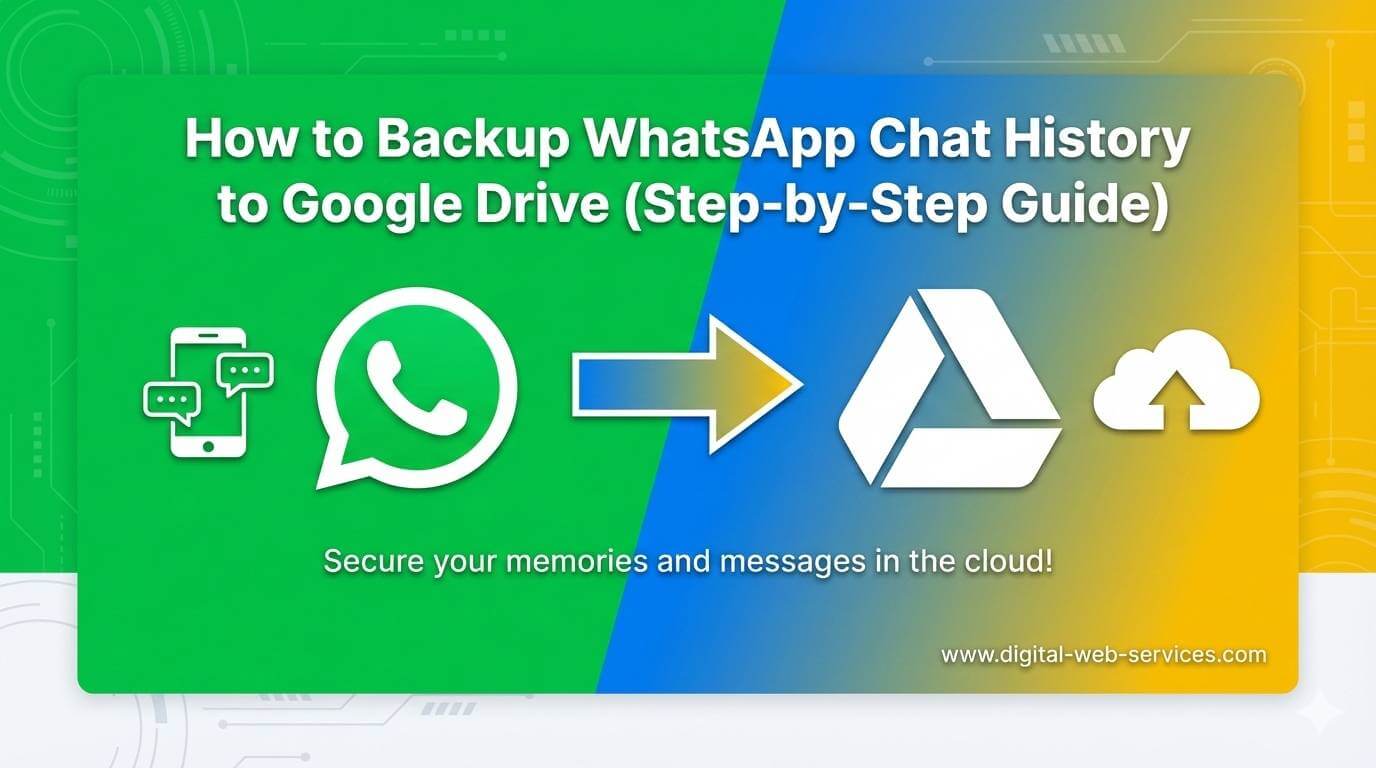
Backing up your WhatsApp chat history to Google Drive is an easy and efficient way to ensure your messages and media are safe. Whether you’re switching phones or just want to protect your chats, this guide will show you how to back up WhatsApp on Android using Google Drive in simple steps.
Why You Should Backup WhatsApp Chats to Google Drive
Backing up WhatsApp chats ensures that all your messages, photos, videos, and voice notes are saved safely in the cloud. This makes it easier to restore your chat history when switching devices or reinstalling WhatsApp. Plus, Google Drive offers a generous storage option, so you don’t have to worry about losing important conversations.
How to Backup WhatsApp to Google Drive: Step-by-Step
Follow these simple steps to back up your WhatsApp chat history to Google Drive on your Android device.
Step 1: Open WhatsApp
Launch WhatsApp on your Android phone.
Step 2: Go to Settings
Tap the three dots (More options) at the top right corner and select Settings.
Step 3: Navigate to Chats
In the Settings menu, tap on Chats, and then select Chat backup.
Step 4: Link Your Google Account
Tap on Google Account and select the Google account you want to use for backups. If you haven’t linked one yet, you’ll be prompted to add an account.
Step 5: Set Backup Frequency
Next, choose how often you want WhatsApp to back up your chat history:
- Daily
- Weekly
- Monthly
- Only when I tap “Back Up” (manual backup)
You can also choose “Only when I tap ‘Back up'” if you prefer to back up your chats manually.
Step 6: Select Network & Media
Under the Back up over section, choose whether you want to use Wi-Fi or Cellular Data. Using Wi-Fi is recommended to avoid using too much mobile data.
You can also toggle on Include videos if you want to back up media files like videos along with your chats.
Step 7: Start Backup
Once you’ve made your selections, tap the green Back Up button to start the backup process. WhatsApp will upload your chat history and media to Google Drive, and you’ll see a confirmation once the backup is complete.
How to Restore WhatsApp Chats from Google Drive
If you’ve backed up your chats to Google Drive, restoring them is simple. When you install WhatsApp on a new device, follow these steps to restore your chat history:
- Verify your phone number in WhatsApp.
- Tap “Restore” when prompted during the setup process.
- WhatsApp will automatically retrieve your backed-up chats from Google Drive and restore them to your device.
| Also Read: How to Set Up Two-Step Verification on WhatsApp
FAQs About WhatsApp Backup to Google Drive
1. Can I back up WhatsApp without using Wi-Fi?
Yes, you can use Cellular Data to back up your WhatsApp chats. However, it’s recommended to use Wi-Fi to avoid consuming too much mobile data.
2. How do I know if my WhatsApp backup was successful?
After the backup is completed, WhatsApp will show the timestamp of the last backup under Settings > Chats > Chat backup.
3. Can I back up videos along with my chats?
Yes, you can include videos in your backup. Just toggle the Include videos option in the backup settings.
4. How do I change the Google account linked to my WhatsApp backup?
Go to Settings > Chats > Chat backup, tap on Google Account, and select or add a new account to link.
5. What happens if I don’t back up my WhatsApp chats?
Without a backup, you risk losing your chat history and media if you change phones or reinstall WhatsApp.
Final Thoughts
Backing up your WhatsApp chat history to Google Drive is a simple yet crucial step to ensure your data is safe. Whether you want to protect your messages, switch devices, or restore chats after reinstalling the app, Google Drive offers a seamless solution. By following these simple steps, you can set up automatic backups and never worry about losing important chats again!

Digital Web Services (DWS) is a leading IT company specializing in Software Development, Web Application Development, Website Designing, and Digital Marketing. Here are providing all kinds of services and solutions for the digital transformation of any business and website.