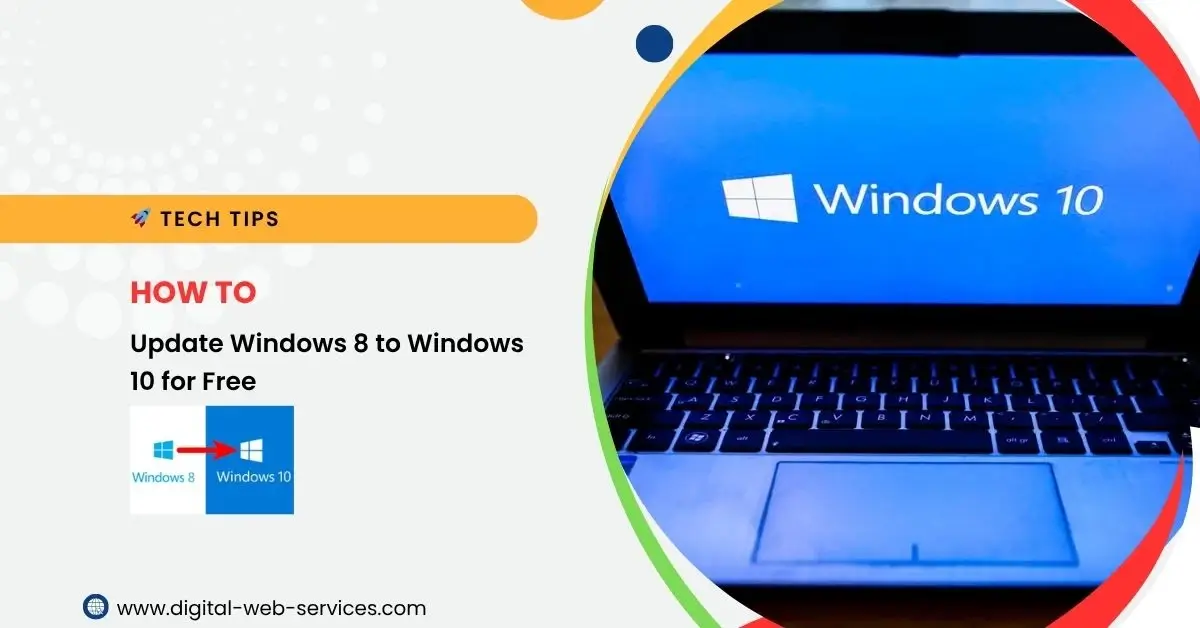
Windows 10 has become the operating system of choice for many users around the world due to its new features, enhanced security, and improved performance. If you’re currently running Windows 8, you might be wondering how to upgrade to Windows 10 without spending any money. Fortunately, upgrading to Windows 10 from Windows 8 is still possible for free under specific conditions.
In this article, we will guide you through the process of updating Windows 8 to Windows 10 for free.
Why Should You Upgrade to Windows 10?
Before we dive into the upgrade process, it’s important to understand the benefits of upgrading from Windows 8 to Windows 10:
- Better User Interface: Windows 10 features a more intuitive and user-friendly interface. It combines the best elements of both the classic Windows desktop and the modern touch interface, making it suitable for all kinds of devices.
- Enhanced Security: Windows 10 is equipped with advanced security features like Windows Defender, Windows Hello, BitLocker, and secure boot options. These features provide better protection against malware and cyber threats.
- Improved Performance: Windows 10 is designed to be faster and more efficient than its predecessors. It runs smoother, uses less memory, and offers faster boot times.
- Access to New Features: With Windows 10, you gain access to a range of new features, including Cortana (the personal assistant), Windows Ink, and the Microsoft Edge browser.
- End of Support for Windows 8: Microsoft has officially ended mainstream support for Windows 8, making it vulnerable to security threats. Windows 10 will receive regular updates and bug fixes.
Prerequisites for Upgrading from Windows 8 to Windows 10
Before proceeding with the upgrade, make sure you meet the following requirements:
- Valid License: You need a valid Windows 8 license to upgrade. The free upgrade offer is available only for eligible devices running Windows 7, 8, or 8.1.
- Backup Your Files: It is always recommended to back up your important data before upgrading. Although the process usually preserves your files, it’s better to be safe than sorry.
- Minimum System Requirements for Windows 10: Ensure your system meets the minimum requirements for Windows 10. The general requirements include:
- 1 GHz processor or faster
- 2 GB of RAM (4 GB recommended)
- 20 GB of available disk space
- DirectX 9 compatible graphics card with WDDM 1.0 driver or higher
- UEFI firmware with Secure Boot capability (optional)
- Stable Internet Connection: A stable internet connection is essential to download Windows 10 and any necessary updates during the upgrade.
How to Upgrade Windows 8 to Windows 10 for Free
Method 1: Using Windows Update (If Available)
Microsoft originally offered a free upgrade from Windows 7 or 8 to Windows 10 for a limited time, but the free upgrade offer officially ended in 2016. However, the free upgrade offer is still functional for some users, so it’s worth checking if you’re eligible.
- Check for Updates:
- Open the Start Menu and go to Settings.
- Click on Update & Security.
- In the left pane, select Windows Update.
- Click on Check for Updates.
- If the upgrade to Windows 10 is available, you should see an option to upgrade your system to Windows 10. Simply follow the on-screen instructions to start the upgrade process.
- Install Windows 10: If the upgrade option appears, follow the prompts. The system will download the necessary files, and your computer will automatically restart several times during the process.
- Complete the Setup: Once the installation is complete, your computer will boot into Windows 10. You will need to follow the setup prompts to finish configuring your system, including logging into your Microsoft account and customizing your settings.
Method 2: Using the Media Creation Tool
If the free upgrade is not available through Windows Update, you can use the Media Creation Tool to manually upgrade to Windows 10. This method is particularly useful if you don’t see the upgrade option through Windows Update.
- Download the Media Creation Tool:
- Visit the official Microsoft Download Windows 10 page.
- Click Download tool now to download the Media Creation Tool.
- Run the Tool:
- Once the tool is downloaded, double-click on it to run the setup.
- Accept the license terms and choose Upgrade this PC now.
- Download Windows 10: The tool will download the necessary Windows 10 files, which might take some time depending on your internet speed.
- Upgrade Process: After the files are downloaded, the tool will guide you through the upgrade process. Your system will restart multiple times. Be patient and do not turn off your computer during this process.
- Activate Windows 10: After the installation is complete, you will need to activate Windows 10. If your Windows 8 license was valid, Windows 10 should automatically activate using the previous activation key. However, if it doesn’t activate automatically, you can enter a valid Windows 10 product key.
Method 3: Clean Install of Windows 10
A clean install is a more advanced method and involves wiping your hard drive and reinstalling Windows 10 from scratch. While this method will remove all your files, it can give you a fresh start with Windows 10 and is recommended if you want to resolve any existing issues on your current Windows 8 system.
- Backup Your Files: Before proceeding, back up all your important data to an external drive or cloud storage.
- Create a Bootable USB Drive: Use the Media Creation Tool to create a bootable USB drive with Windows 10 installation files. You can follow the instructions provided in the Media Creation Tool to do this.
- Install Windows 10:
- Insert the USB drive into your PC and restart it
- Boot from the USB drive (you may need to change the boot order in BIOS).
- Select Install Now and follow the prompts to complete the installation.
- Activate Windows 10: During the installation process, you may be asked to enter a product key. If you’re upgrading from Windows 8, you can skip this step, and Windows 10 should activate automatically.
Troubleshooting
If you encounter issues during the upgrade process, here are a few common solutions:
- Windows 10 Activation Issue: If Windows 10 does not activate automatically, you can try entering the original Windows 8 product key. Alternatively, you may contact Microsoft support for assistance with activation.
- Incompatible Drivers: After upgrading, you might encounter compatibility issues with certain drivers. Visit the manufacturer’s website for updated drivers or use Windows Update to find new driver versions.
- Insufficient Disk Space: If you do not have enough disk space to complete the upgrade, consider freeing up space by deleting unnecessary files or moving files to an external drive.
Conclusion
Upgrading from Windows 8 to Windows 10 is a straightforward process that can be completed for free if you meet the eligibility requirements. While the official free upgrade offer has ended, many users can still take advantage of it using the methods outlined in this guide. Remember to back up your files and ensure your PC meets the minimum system requirements before starting the upgrade.
By making the move to Windows 10, you’ll benefit from improved security, enhanced features, and better overall performance, ensuring that your computer remains up to date and ready for the future.

Maria Jain is a Senior Content Strategist and Tech Editor at Digital Web Services, with over 6+ years of experience covering digital marketing, website development, and search engine optimization. She specializes in WordPress site architecture, AI technologies, Web Hosting, topical authority models, and hands-on SaaS & affiliate tool reviews. Maria combines data-driven SEO practices with deep web design and technical insights to publish transparent guides, tool comparisons, and strategic tutorials for digital growth.